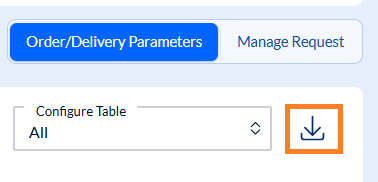
In Order/Delivery Parameters you can check the schedules agreed with Metro for order placing, for deliveries and the lead time between order and delivery. In case you wish to initiate parameter adjustments, you can do it directly in SCOT.
Your changes will automatically become visible to Metro, who will assess and register them in the master data. You will also be able to view the status of your change requests directly in SCOT under Order/Delivery Parameters section.
1. Search Filters - Find the needed article records
Go to Logistic Parameters. Then click on the middle tab, Order/Delivery Parameters.
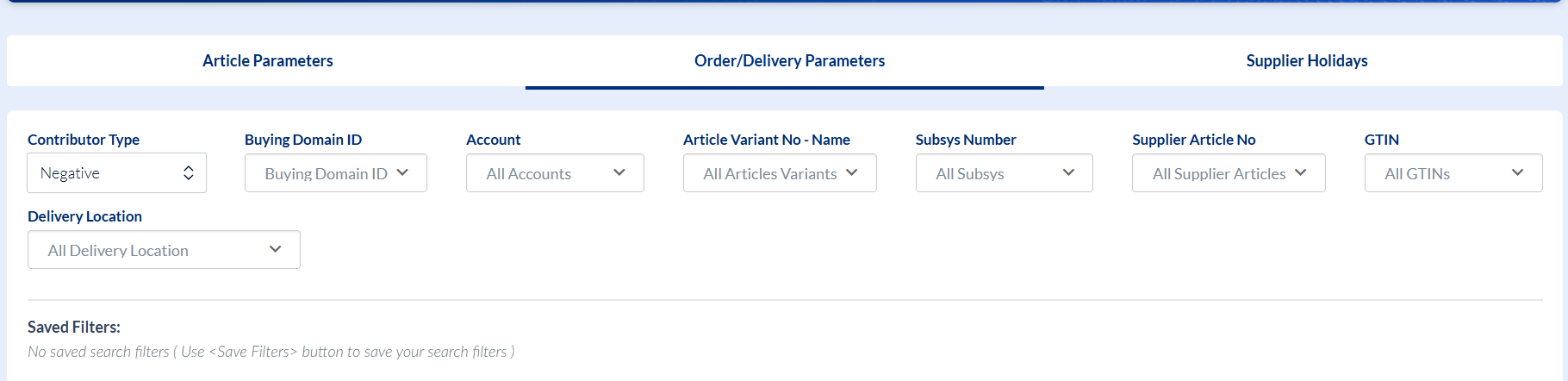
Use the top filters to find the needed articles and delivery locations. Select All Contributors under Contributor Type to access the entire list of articles registered with Metro, then narrow down the results by using the other filters:
Account (if you company has several supplier numbers),
Article Variant No - Name (if you know the exact reference number), Supplier Article No (as used in your own system) or GTIN.
Buying Domain ID allows you to filter and segment data by purchasing area / merchandise category (e.g., Fresh/Meat, Fish, Produce, Dry Goods, Beverages, Non-Food).
Subsys Number allows you to isolate the exact variant and bundle size ordered.
Click on the Search button.
A list of results is shown under Order/Delivery Parameters, the number of records also being specified.
Note: The Order/Delivery table is by default shown on the screen. If you wish to look at the Manage Request table you can use the new switcher functionality.

IMPORTANT:
- The Contributor Type filter impacts only the Order/Delivery Parameters results grid, not the Manage Request grid.
- The Account, Article Variant No - Name, Supplier Article No and GTIN filters impact both grids: Order/Delivery Parameters and Manage Request.
2. Order/Delivery Parameters grid - Request a change
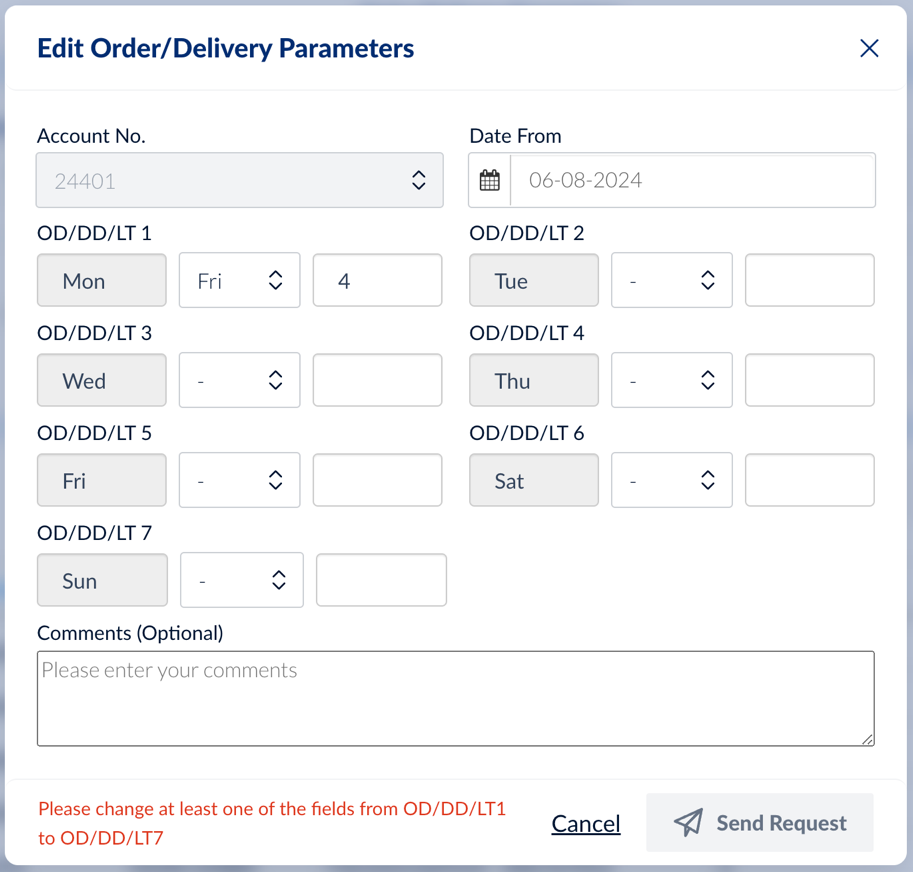
Use the Edit icon in front of the record of your choice in order to register a change request for that specific record. A pop-up window Edit Order/Delivery Parameters appears where you can edit the fields:
- Date From
- Delivery Day (Order Day is set by default for each day of the week, enter Delivery Day only where needed)
- Lead Time Schedule (needed for all Delivery Days you entered)
Optionally, you can enter a message for Metro in the Comments field.
Click on Send Request when ready.

IMPORTANT:
When you edit a record, please note that at least one of the following conditions which apply in order for your change request to be processed by the system:
- At least one of the fields from OD/DD/LT1 to OD/DD/LT7 needs to be changed
- At least one of the fields OD/DD/LT1 to OD/DD/LT7 must be filled in (they cannot all be empty)
- When editing a group OD/DD/LT, both DD/LT fields should be either filled in or empty
- Date From needs to be current date plus at least one day
- Duplicate records are not permitted by the system: in case you try to edit a record in the Manage Request grid and your changes would make this record identical to the original record from the Order/Delivery Parameters grid, the system will not allow this and will show a relevant error message.
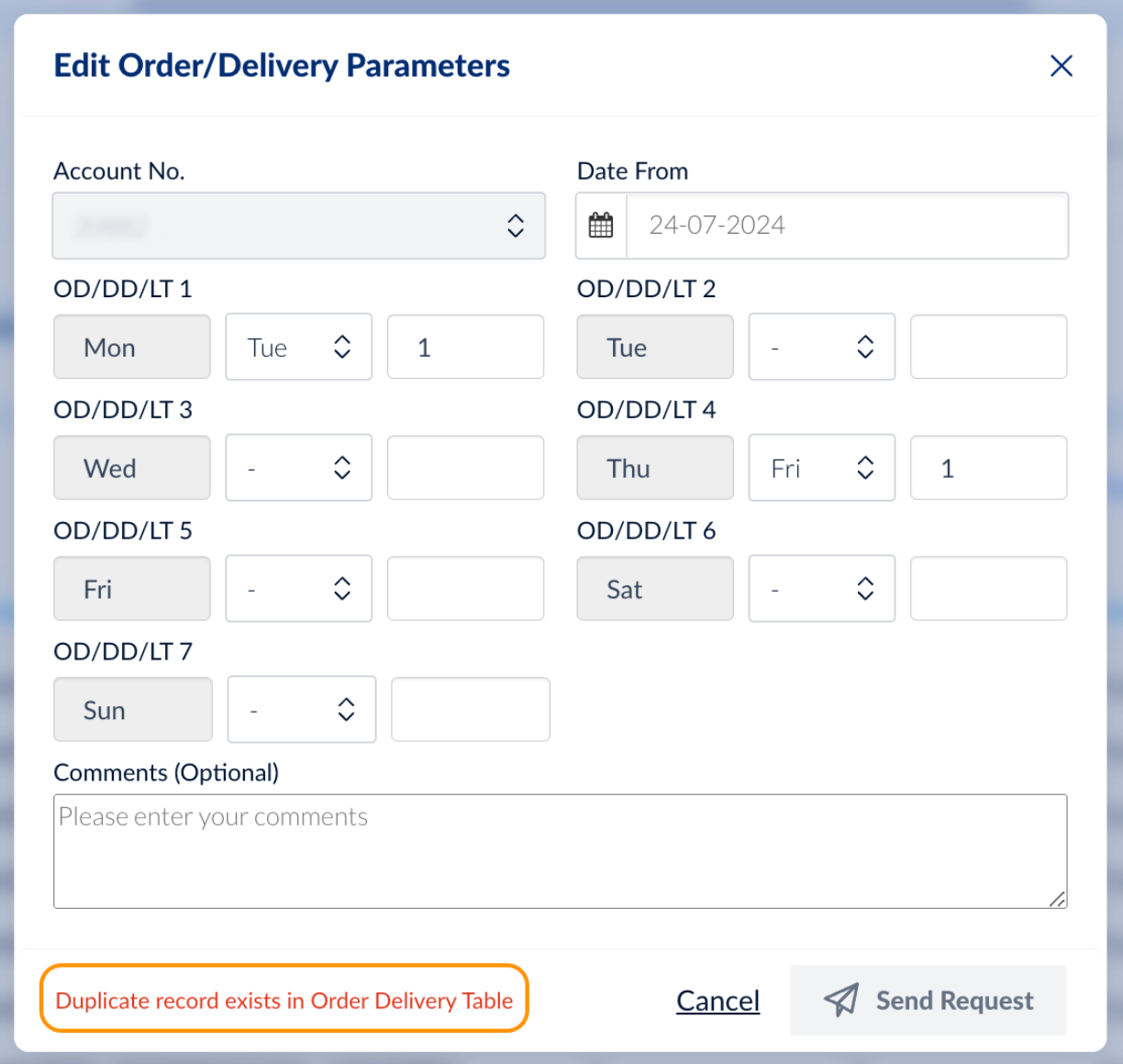
SCOT will show you relevant error messages in case any of the above conditions are not met so you know exactly what the problem is and what to correct.
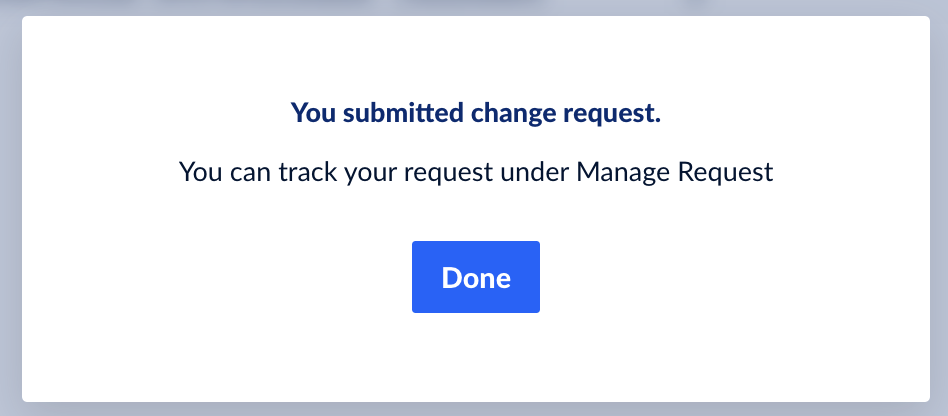
Once all the validations are done, a pop-up message appears stating that your change request has been submitted.
Click on Done and the request can be tracked under Manage Request.
NOTES:
- The Edit icon is now disabled in the Order/Delivery Parameters grid because a change request has already been created for that record. The Edit icon is disabled until the corresponding change request status changes to Completed, indicating that the current change request is now fully completed and that a new request can be created against the newly updated record. In case the initial change request is Rejected, the same record can have a fresh change request created for it.
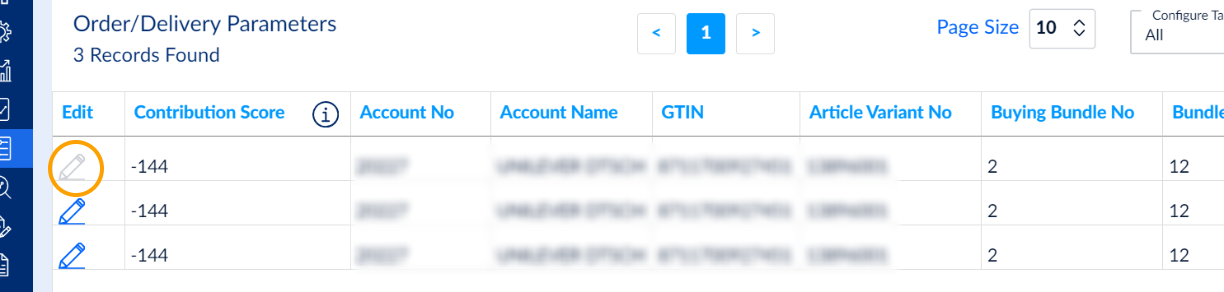
- After submitting your request, you can edit it under the Manage Request table if the filter status is Created (meaning that Metro has not started working on it).
3. Manage Request grid - Edit or delete your created change requests
Now your edited record is shown under the Manage Request grid. This is what we call a "change request”.
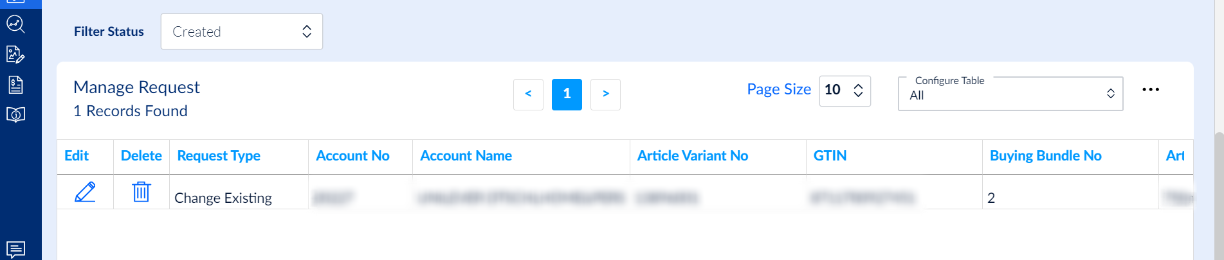
If you scroll towards the right, you can find that each record has columns Current and New for Order Day/Delivery Day/Lead Time. There will be seven columns each for Current and New starting from OD/DD/LT 1 to OD/DD/LT 7. Here, 1 to 7 indicate the weekdays starting from Monday (1) to Sunday (7). The changes requested will appear under New OD/DD/LT.

This allows both you and Metro, when they will review your change requests, to quickly and easily identify the field(s) where the change(s) have been done.
IMPORTANT:
- Only the edited fields will be filled in under Current. The ones which remain unchanged are empty. Under New, all fields are populated.
- Once the edited record is approved by Metro, it will show as Approved.
You can use the Edit icon in front of the record to make additional changes.
You can use the Delete icon to delete that change request in case you made it by mistake or it is no longer needed.
NOTE: Editing and deleting a change request record is possible as long as the record status is Created. As soon as Metro starts working on it, you will no longer be able to make changes.
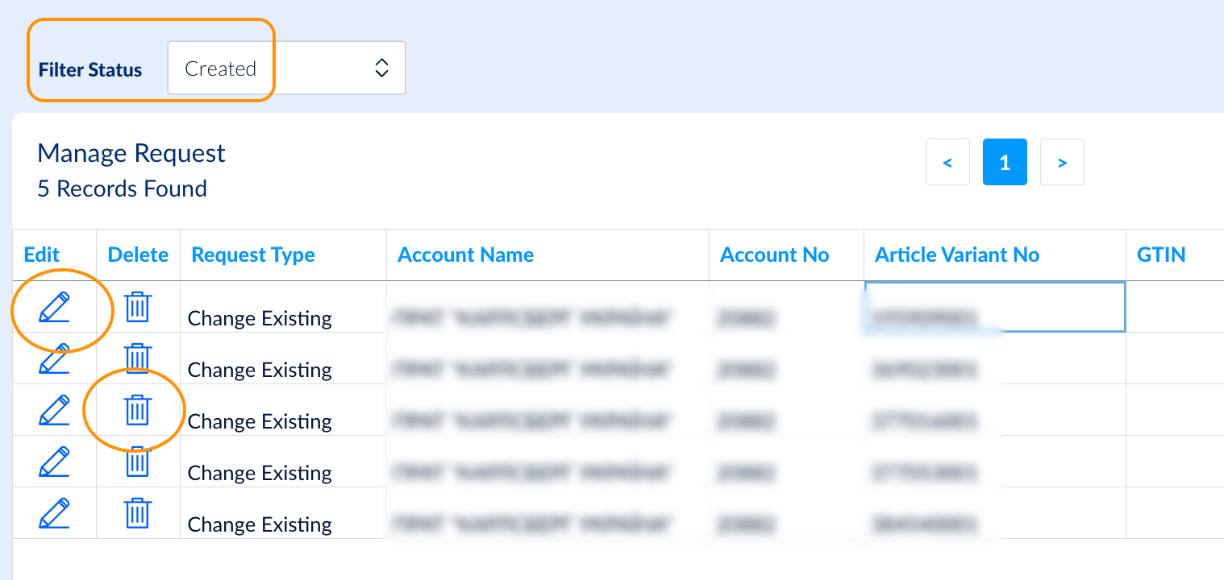
4. Filter Status - Check the status of your change requests
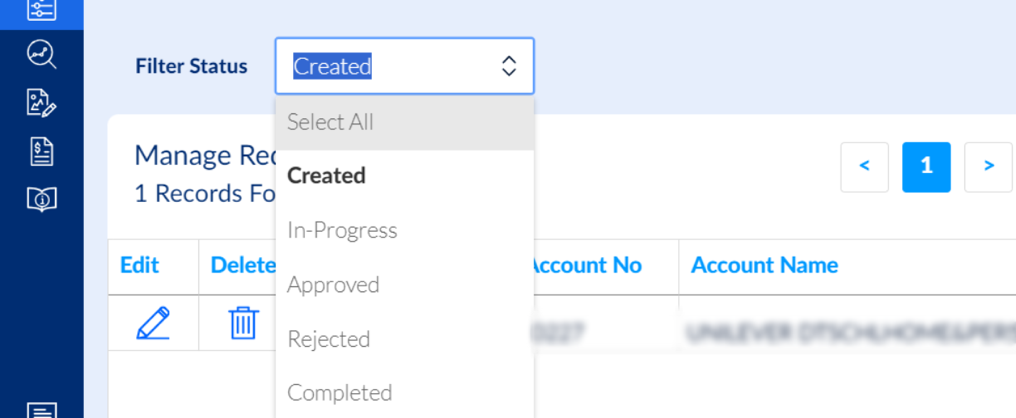
On top of the Manage Request grid, there is a Filter Status selector. You can use it to filter your change requests depending on their current status.
These are the available statuses:
- Created - You created your change request and you can still edit or delete it if needed. Metro has not taken any action yet.
- In Progress - Metro has started working on your change request. You can no longer modify it.
- Approved - Metro has approved your change request but the needed update has not yet been done in metro sourcing system. You cannot modify your request.
- Rejected - Metro has rejected your change request. Your record becomes available for editing again under Order/Delivery Parameters.
- Completed - Metro has approved your request and the change is applied in sourcing systems. Once status is Completed, the record becomes available for editing again under Order/Delivery Parameters.
- Select All option allows you to see all records in the list, regardless of their status.
5. Additional information
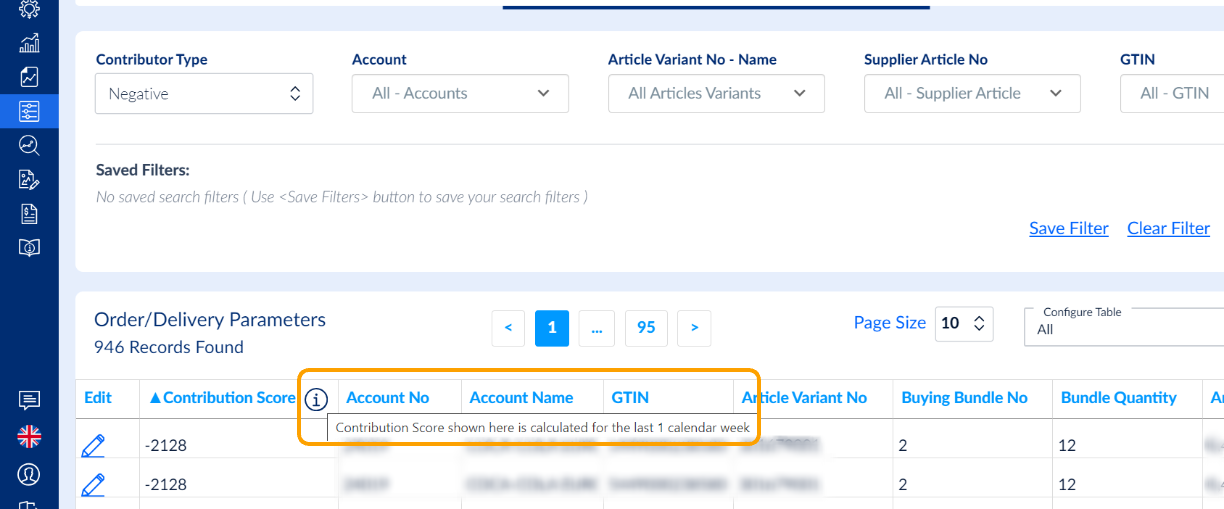
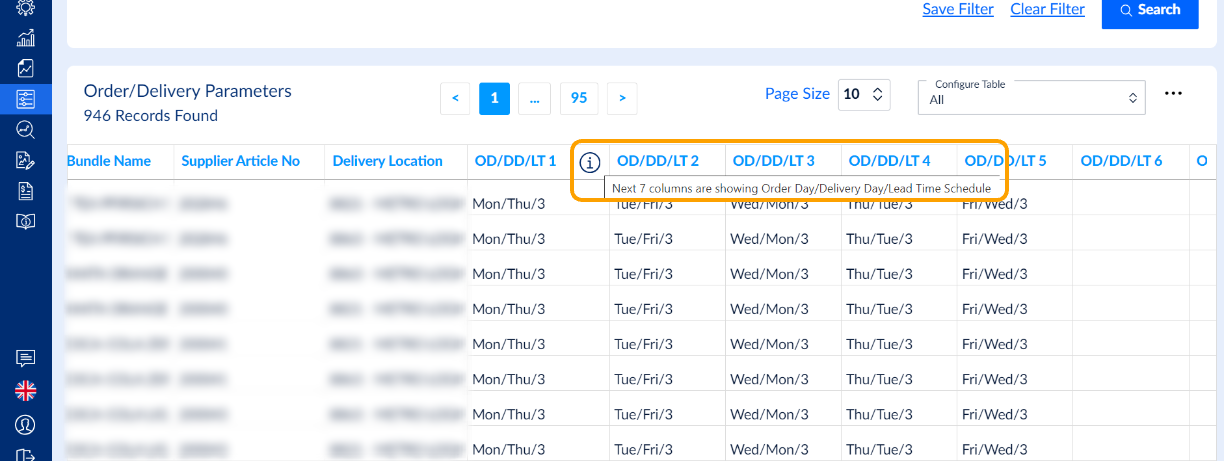
More details can be obtained by hovering with your mouse over the Info buttons where available.
All standard functionalities related to Page Size and Configure Table apply also to the Manage Request grid.
Excel Export is also possible.