How to Register in Metro Link Plus & access OBDM
In case your company is not registered in Metro Link Plus, you will receive an email invitation to register your company and yourself as Admin User in Metro Link Plus.
With Metro Link Plus, your company will have the possibility to have access to several applications at once.
Email Invitation:
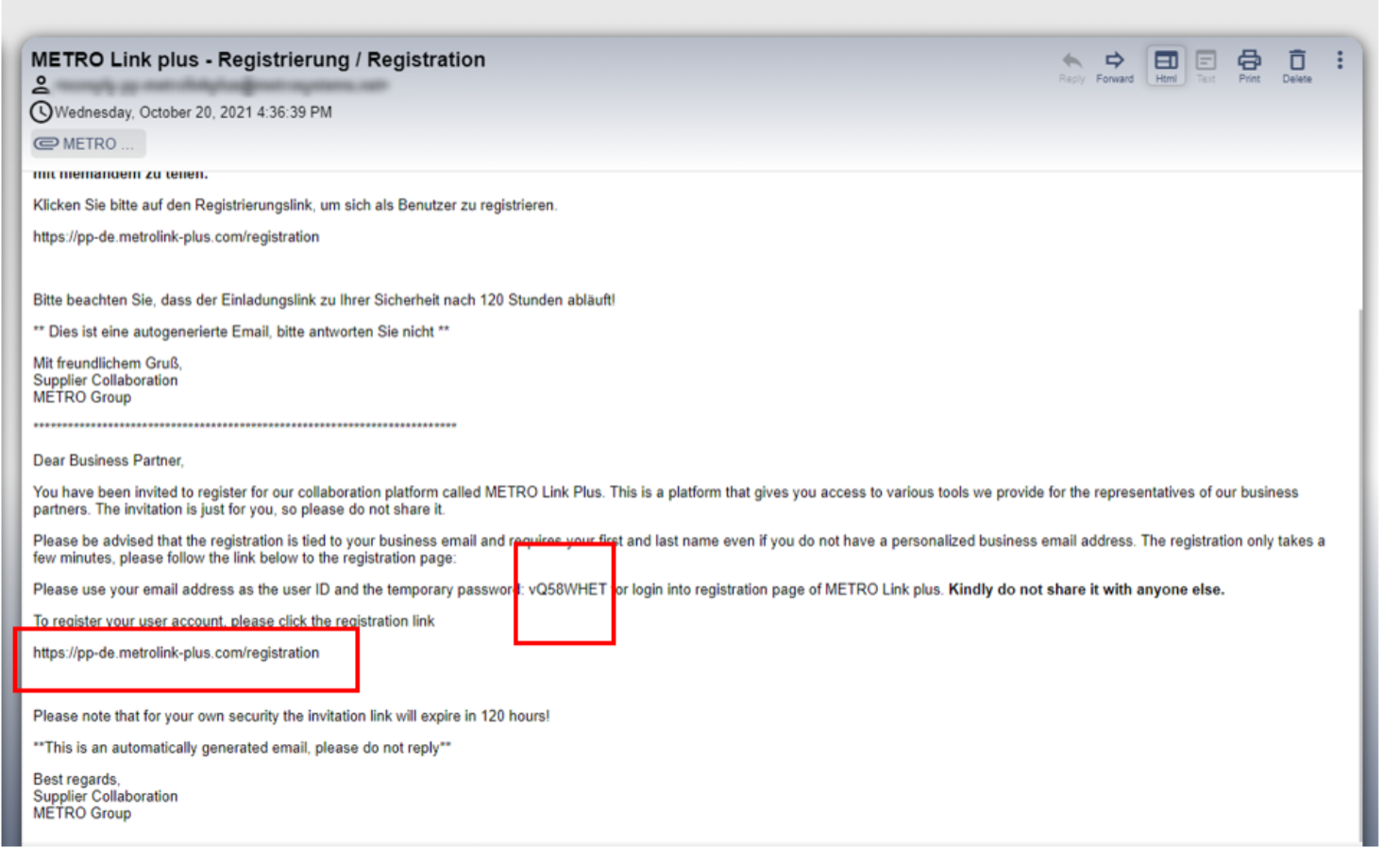
Open your email invitation.

Click on the provided link and copy the temporary password, which is valid for 5 days.
Metro Link Plus Portal:
Please use the link from the invitation email.
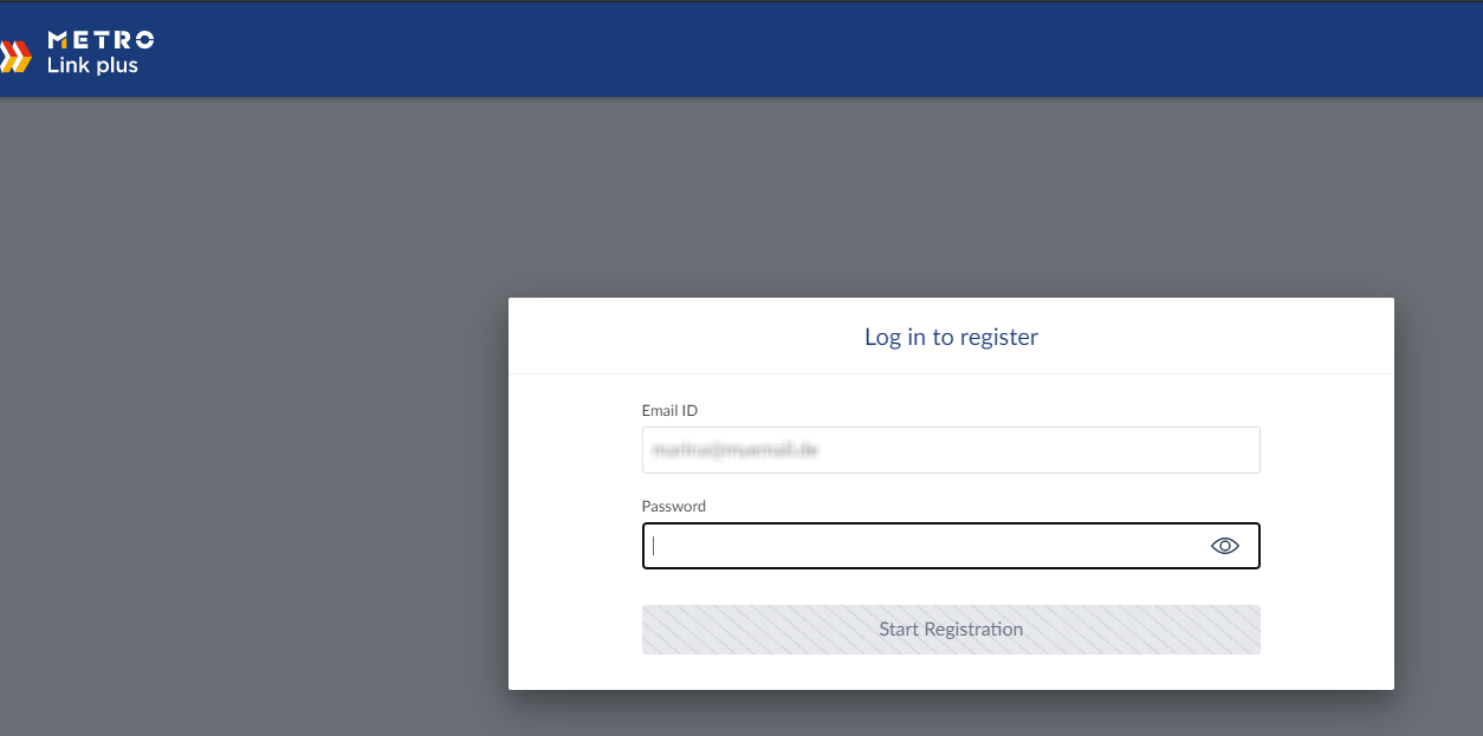
Login:
Login: your email address.
Password: If you are logging in for the first time or receive your password via email invitation, you need to change and personalize your password within the registration process.
Submit registration:
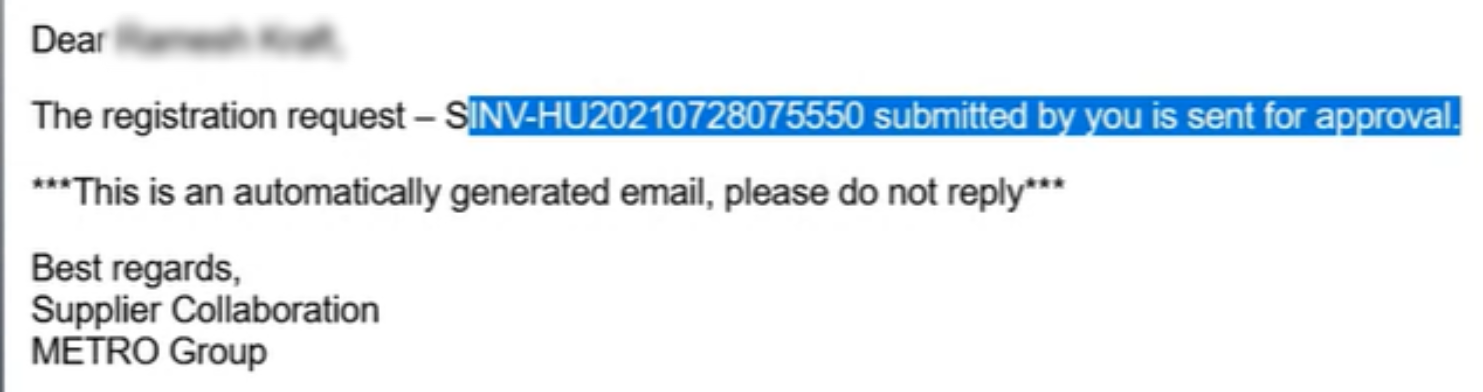
To complete the registration of your company, please fill in the registration details and submit your registration. You will receive an email that your registration is sent for approval to METRO.

Email example, that you submitted your registration:
Registration Approval from Metro:
When you receive an email from Metro that your registration has been approved, please log in into Metro Link Plus.
Email example, that your company has been approved: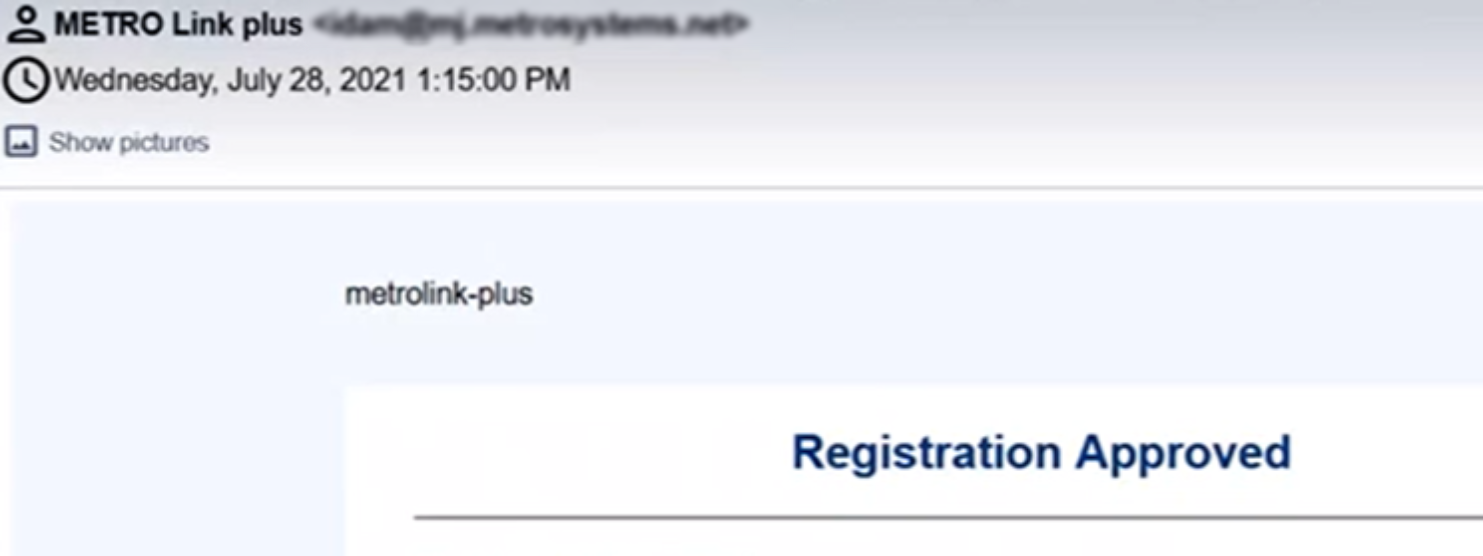
Login after approved Registration:
Step 1 – Open METRO Link plus and click Login
Important: Please do not interrupt the process of setting up two-factor authentication until you are finished.
Navigate to the METRO Link plus portal and click the Login button in the top-right corner.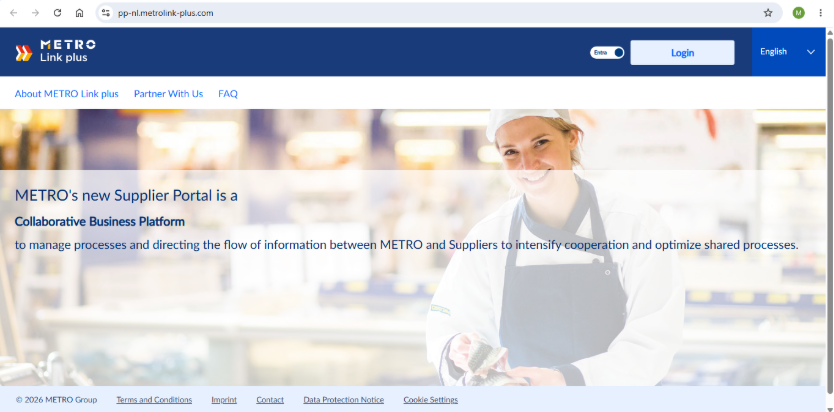
Step 2 – Entra External ID sign-in screen
You are redirected to the Microsoft Entra External ID sign-in page. Enter your registered email address and click Next.
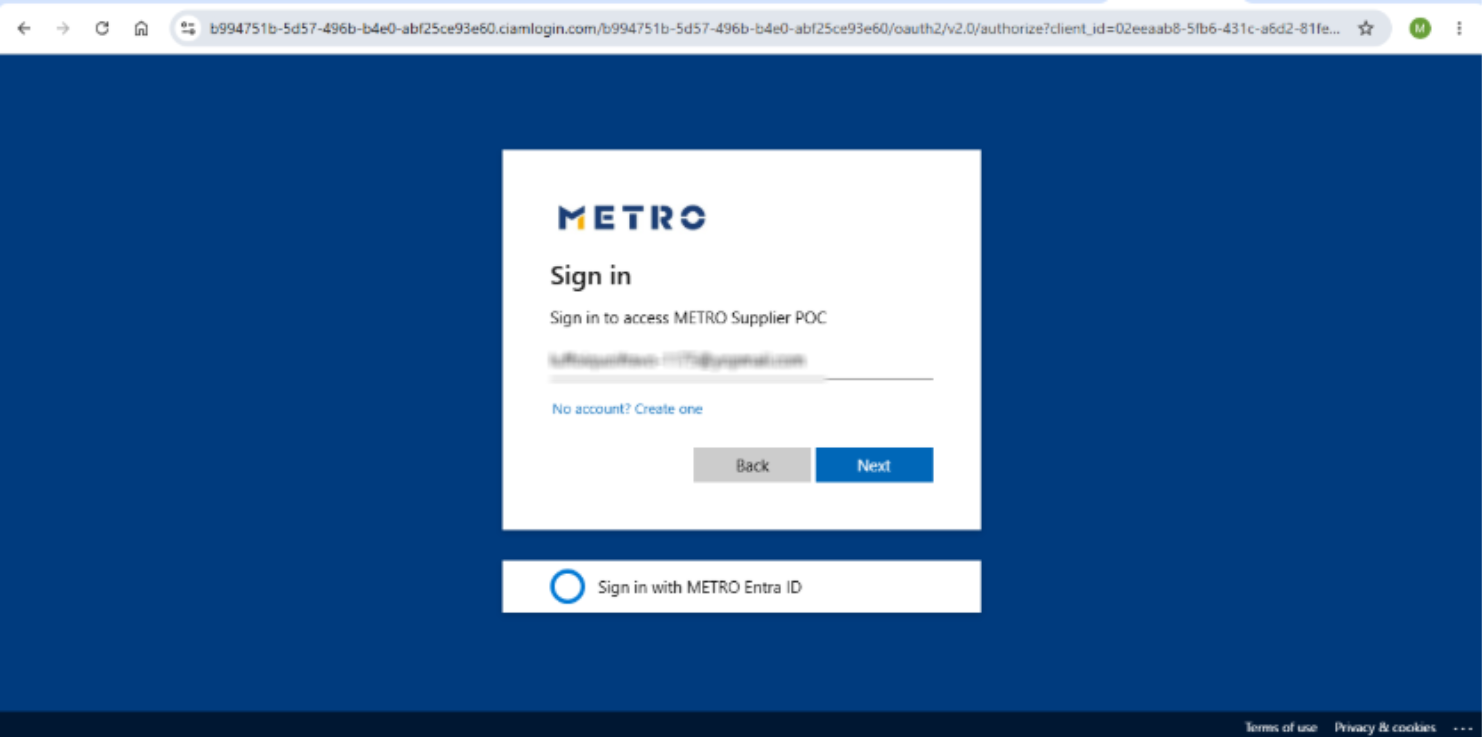
Fig. 2 – Entra External ID sign-in screen | enter email address
Step 3 – Enter your password
The Enter password screen appears. Type your current password and click Sign in.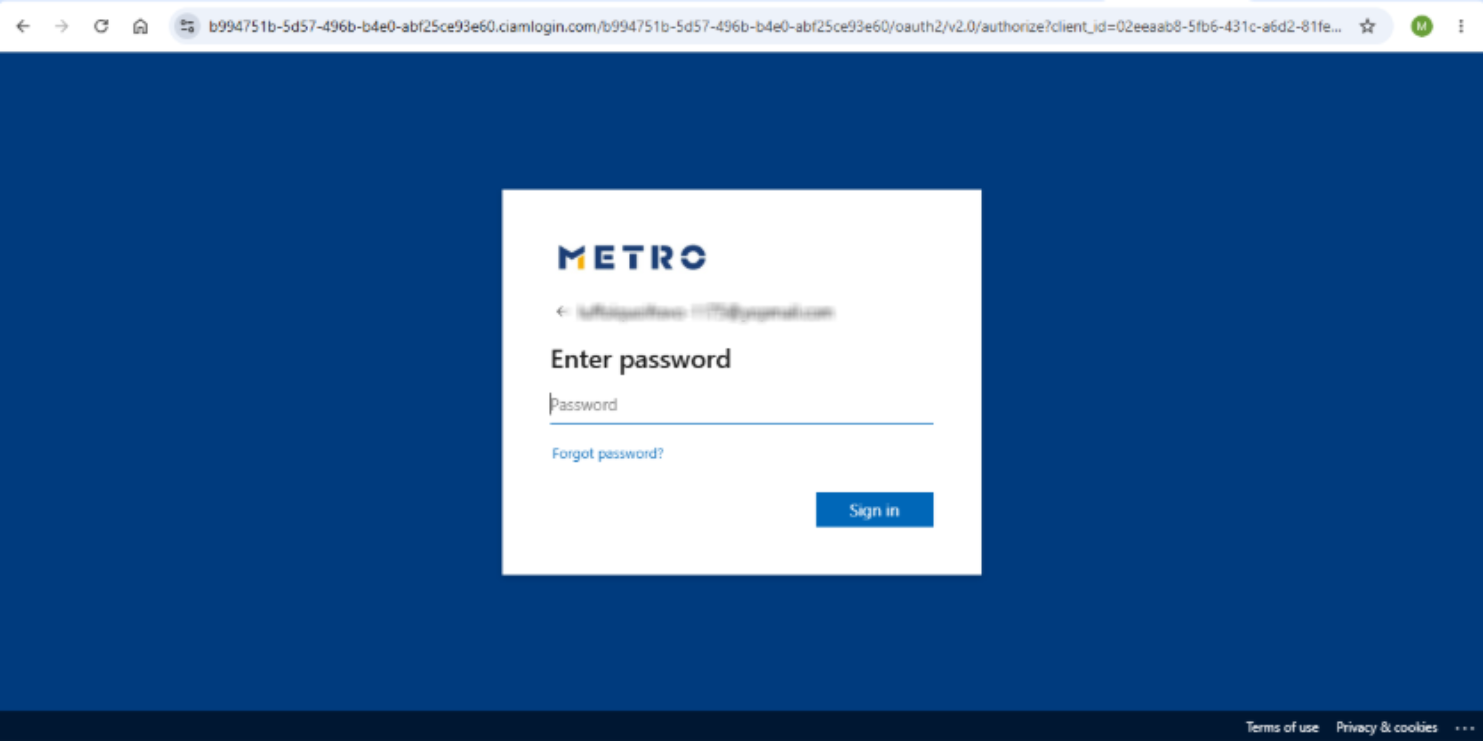
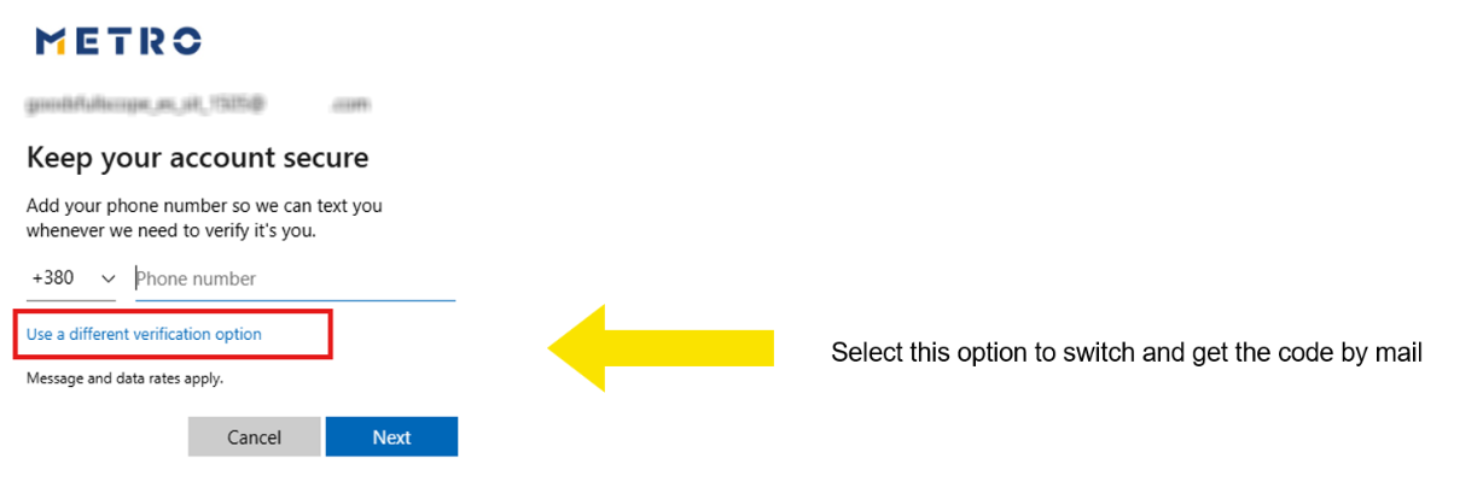
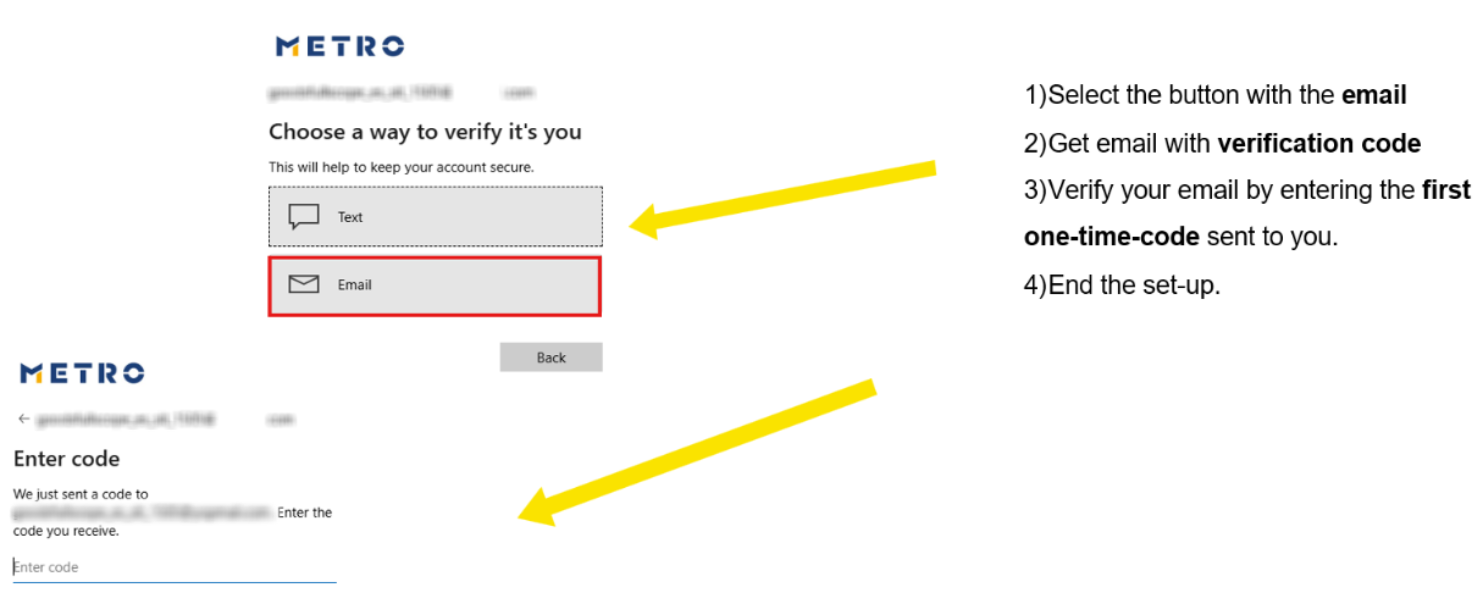
Step 4 – Enter the OTP received by Email
After signing in, the “Enter code” screen appears automatically – an OTP has been sent to your registered e-mail address. Open your inbox and find the message from METRO Supplier POC (via Microsoft). Copy the code, enter it in the field and click Verify.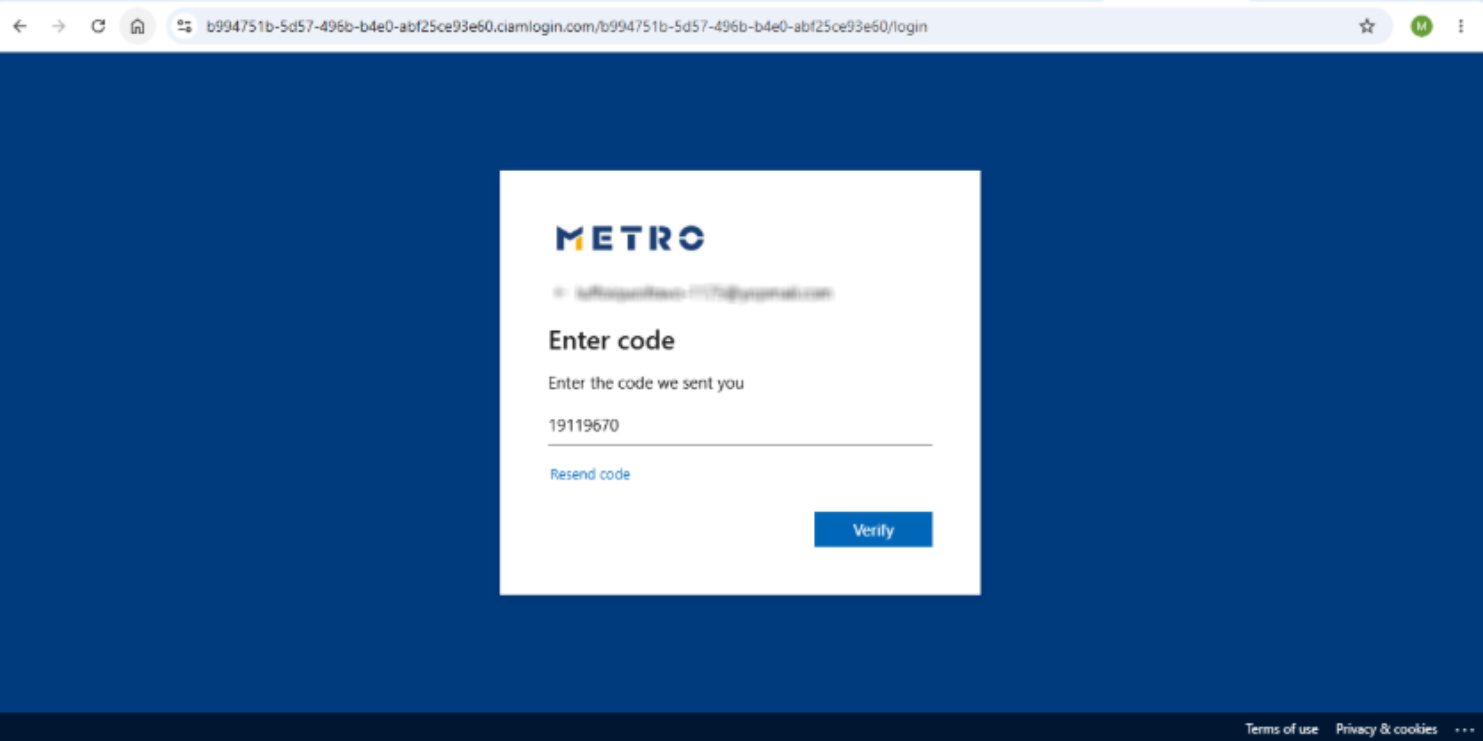
Step 5 – Login complete
You are redirected to the METRO Link plus main landing page. Email MFA setup is complete. On future logins, an OTP will be sent automatically to your registered e-mail address.
Enter OBDM Application:
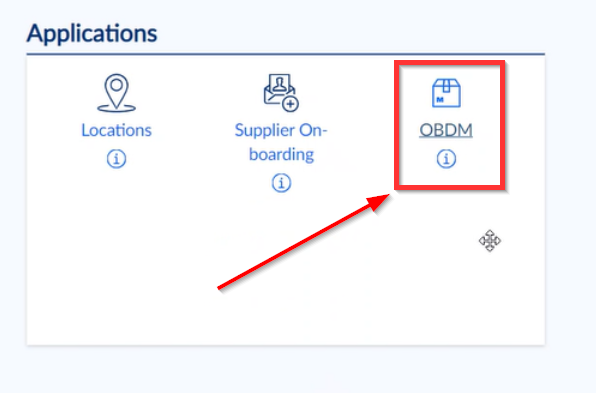
Once you entered Metro Link Plus, please click on the "OBDM" icon to enter the application for packaging design.