
The Order Forecast section is designed to bring more transparency and predictability for future order planning between you and Metro. Having access to a forecast of Metro's anticipated demand for the upcoming weeks, you can estimate and prepare your next deliveries. And in case you have a different forecast than Metro's, you can share it with Metro directly via SCOT.
Fast and easy communication directly in SCOT for improved delivery performance!
How Forecast Exchange Works
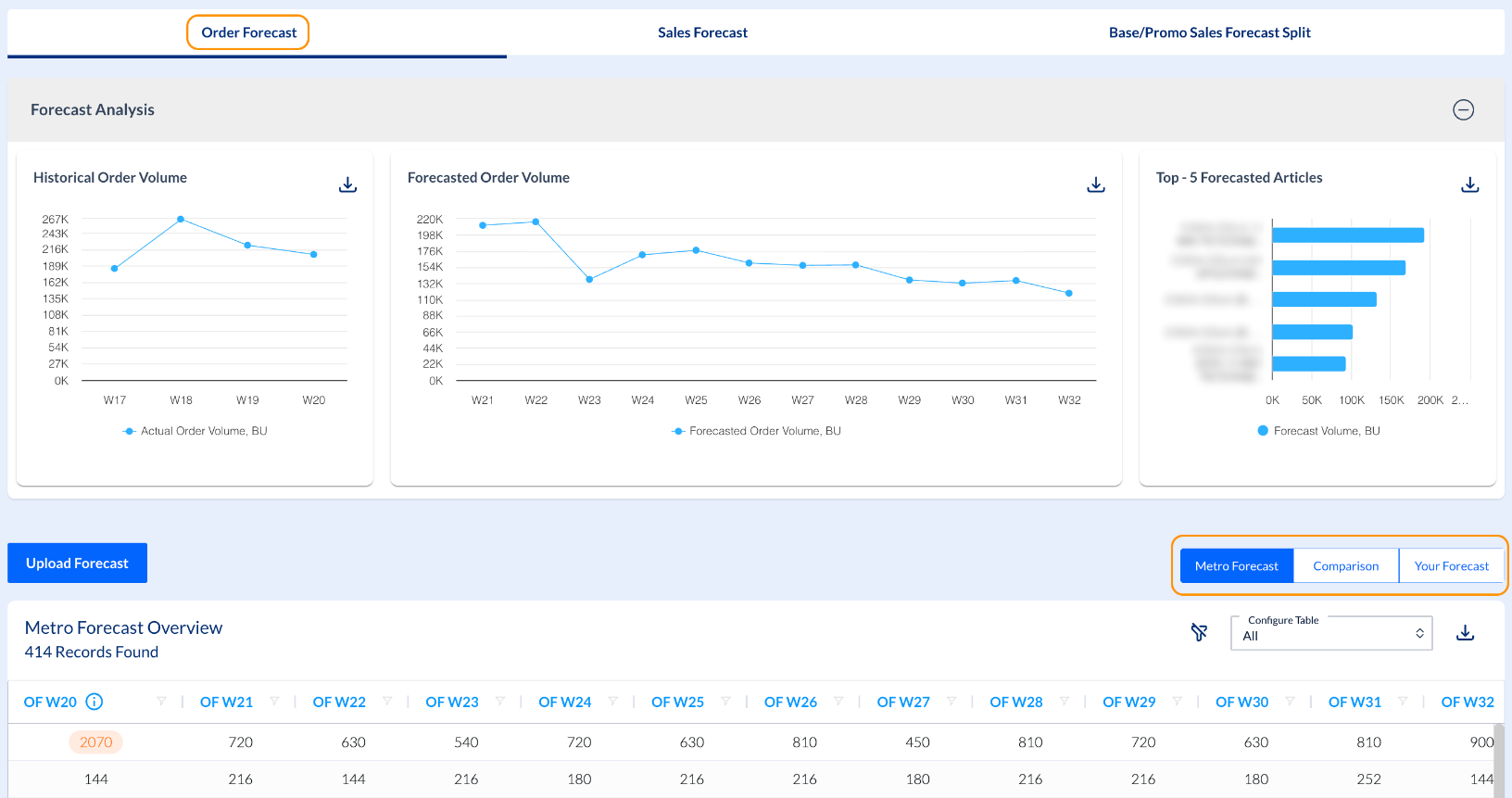
The Order Forecast page gives you the possibility to see Metro's order forecast, upload your own forecast and check the comparison between the two forecasts. This information is shown in three separate tabs: Metro Forecast, Comparison and Your Forecast, placed in the right side of the page, under Top - 5 Forecasted Articles.
Forecast Upload
In order to upload your forecast, first please download Metro's existing forecast. You can do it by clicking on the download icon available on the right side, on top of the grid. The exported file works as a Template.

To use the exported file as a template and be able to upload it back in SCOT without any error, please make sure you:
- save the file in Unrestricted mode
- delete the first two rows from the file.
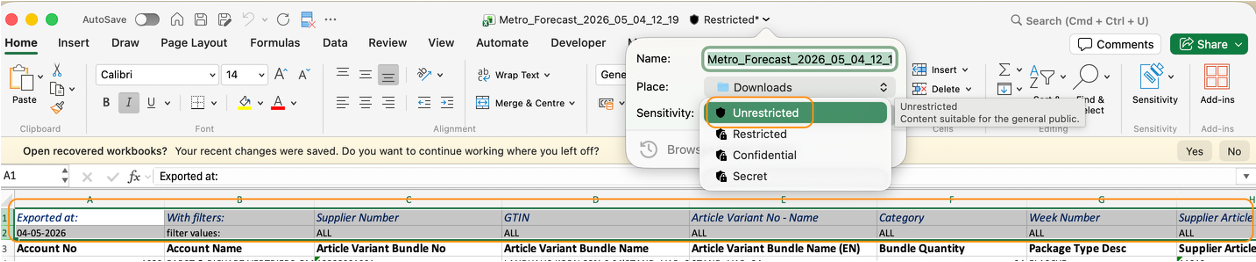
Then you can fill in your data. You can modify the numbers in the file by increasing, decreasing, deleting them or adding 0 (zero) as value. If you will delete data from entire row, this row will not be taken into consideration during the upload.
NOTE: If you add 0 (zero) value in a cell, it is considered that you know and share your forecast, and its value is zero. This means that you will not be able to deliver anything to Metro for that article and for that week
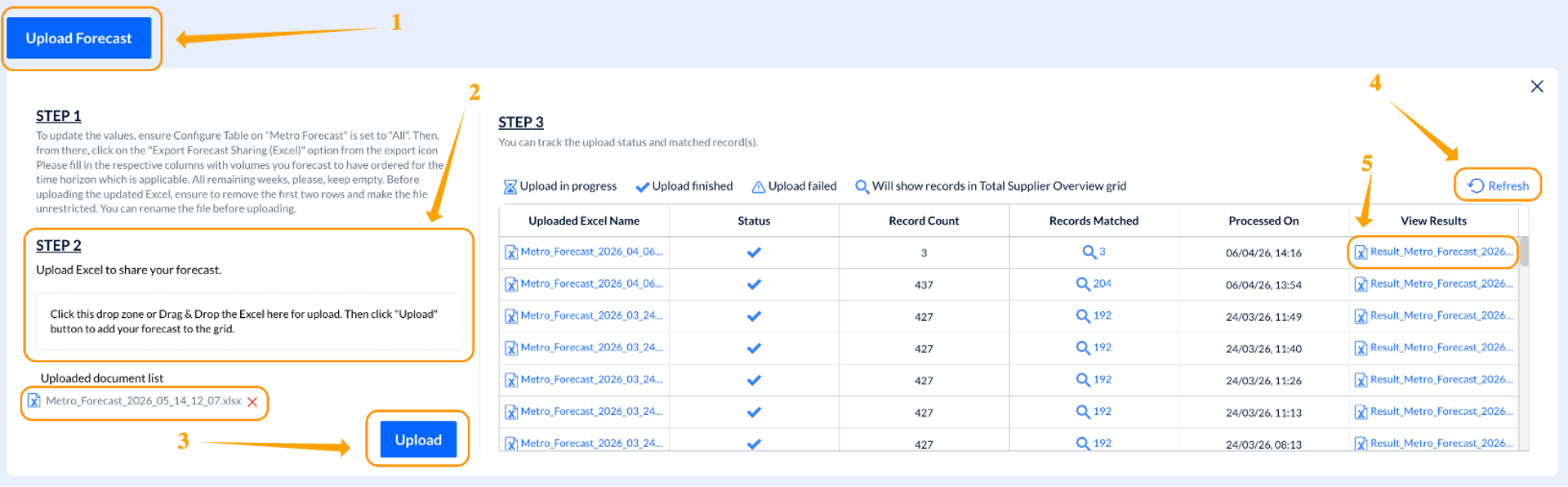
For file upload, please click on the Upload Forecast button at the upper left side of the grid, then click on the drop zone to select the needed file or just drag & drop the file directly. When the file is selected, click on Upload.
If the upload is successful, the following green message is shown at the top of the screen:
"Excel uploaded successfully. Forecast creation in progress. Please check after some time."

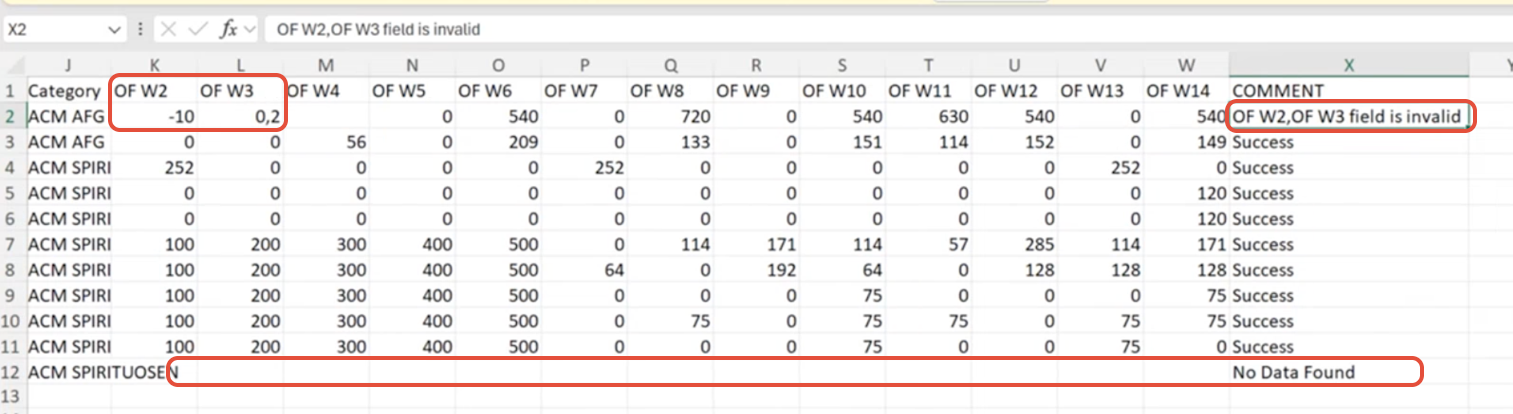
Click on OK and use the Refresh option available on the right side to see the status. Under View Results you can download an Excel showing you the status of the upload: in case there were errors with some lines, you'll see the details, so you can correct the re-upload the file.
You can also click on the number in the Records Matched column to see exactly the rows that were uploaded. This only works for the latest upload, clicking to the number in older rows/upload will not work.
NOTE: The number of records will not always match. The difference can be caused by empty lines or errors, like in the example below (capture from Result_Metro_Forecast_xxx file, where one row is empty and in another the data has invalid format like negative or not whole number):
Now you can check your uploaded data in Your Forecast tab and check the comparison between your forecast and Metro’s in the Comparison tab.
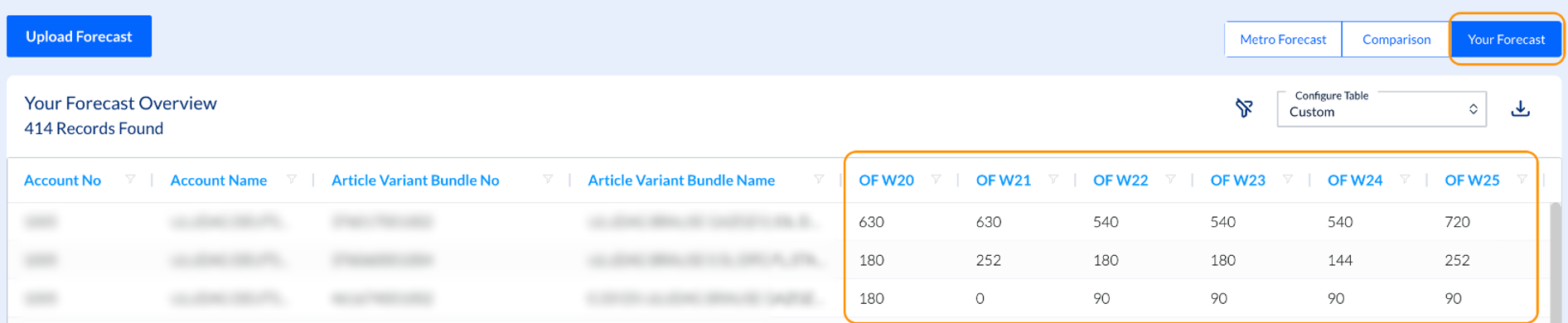
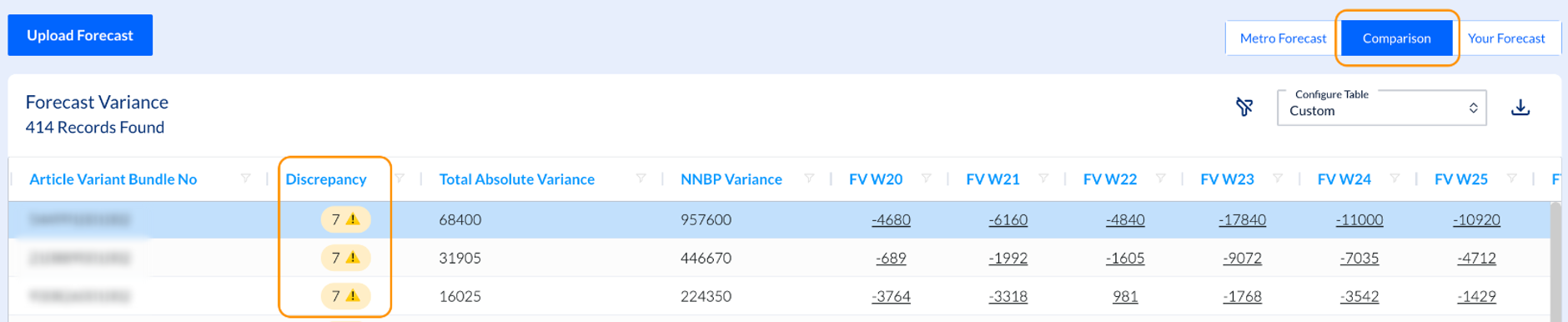
NOTE: Your Forecast and Comparison switchers will be grey (disabled) if there is no data at all uploaded by you. They are only enabled once data is provided by you. Also, the number of results in all 3 – Metro, Comparison and Your Forecast is always the same.
How to Check Discrepancies
In the Comparison tab, you have two ways to check the variations between your order forecast and Metro's - both at article level:
1. for one week only
To see the data for 1 week, click on the underlined number under the week that you need for a specific article. A pop-up opens up and shows you Metro’s forecast, your own forecast, the Variance and a percentage of the variance.
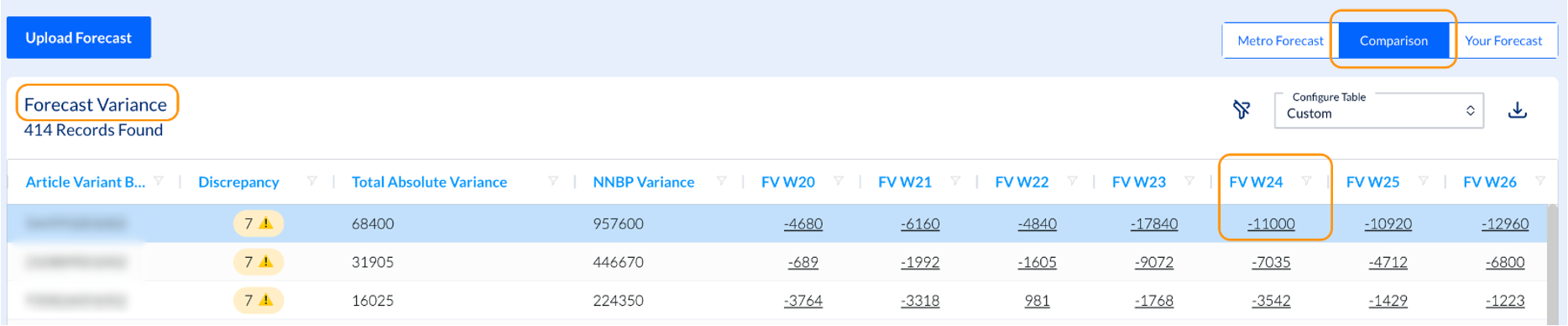
NOTE: When the quantity forecasted by you is lower than the one forecasted by Metro, variance is reflected as a negative amount.
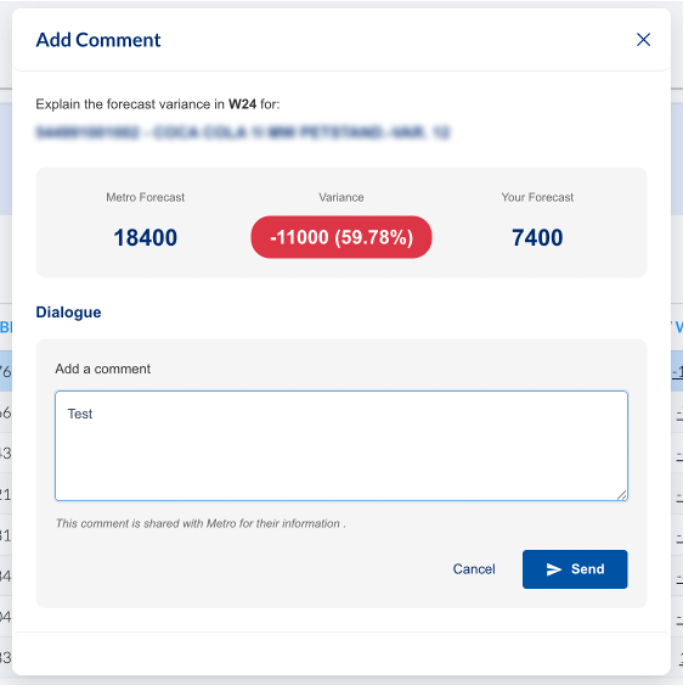
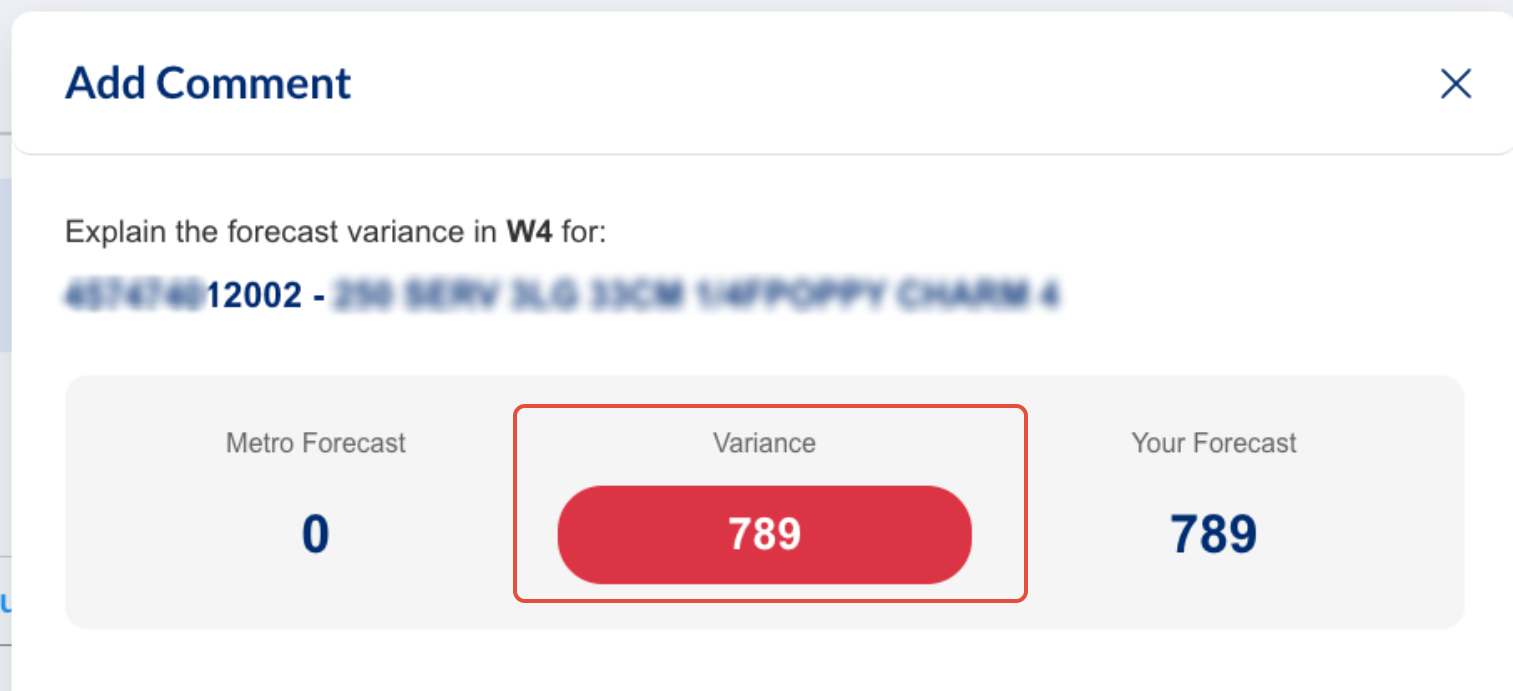
When Metro's forecast is 0 (zero), variance as a percentage is not reflected in compared data at weekly level.
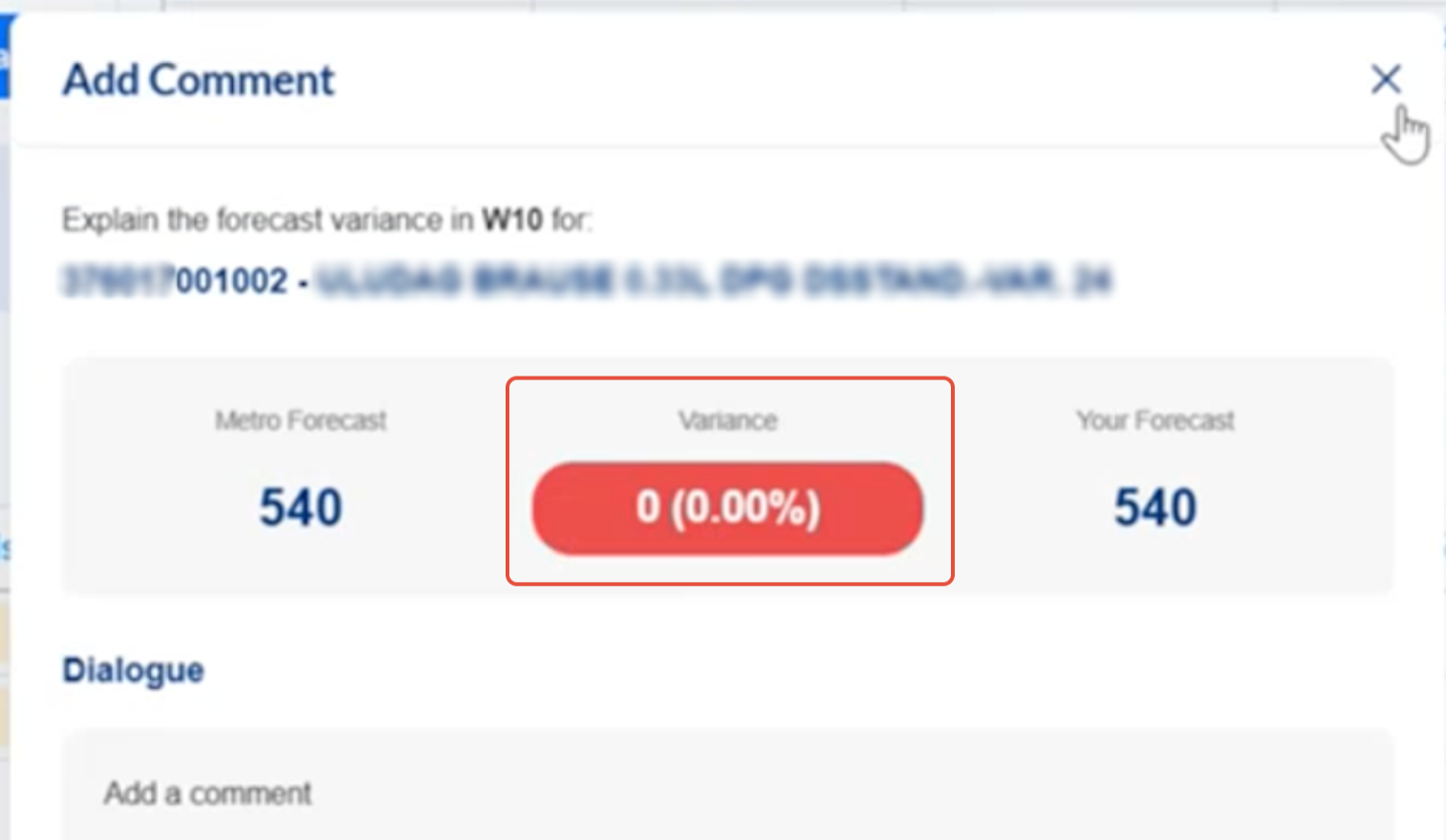
When Metro's forecast = your forecast, variance of 0 (zero) is reflected in compared data at weekly level. In the grid, the cell for respective week will also have 0 (zero) amount.
2. for the entire 13-week forecast period
To see the whole period info for a specific article, click on the corresponding number highlighted yellow under Discrepancy. A pop-up window will show you the discrepancies for that article for each affected week (Discrepancy Summary).
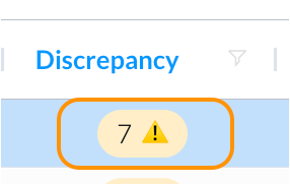
NOTE: The number shown in the Discrepancy column (like in the capture below) reflects the number of the weeks with discrepancies between the two forecasts - Metro's and yours - excluding the weeks where discrepancies are 0 (zero) or the cells are empty (no forecast added).
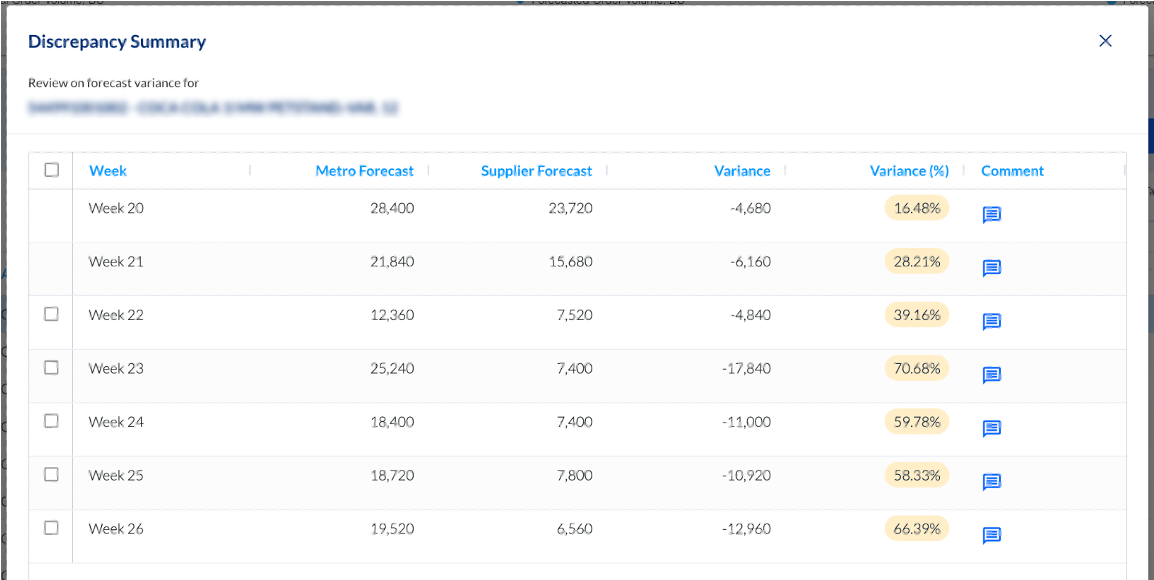
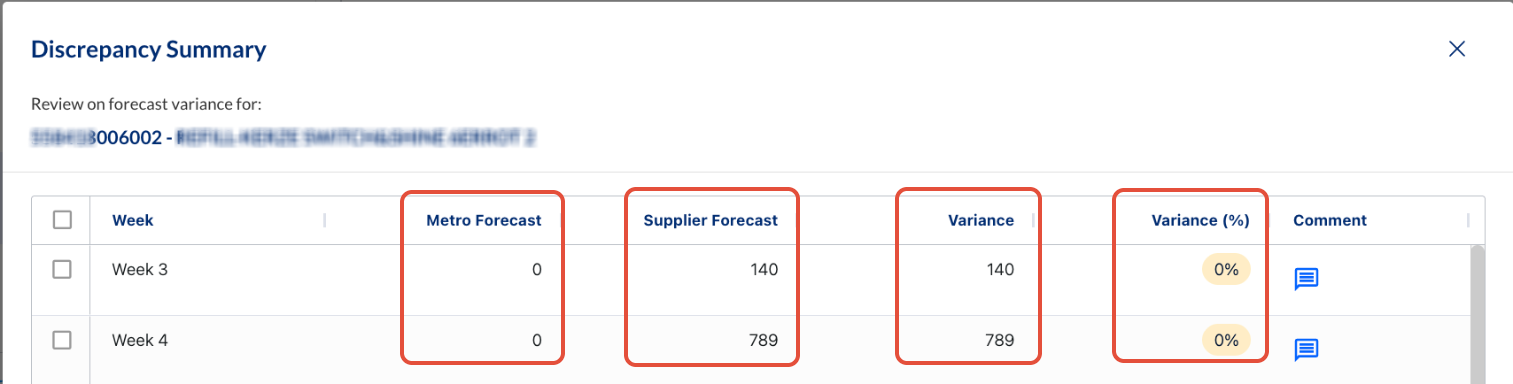
NOTE: When Metro forecasted ordered quantity = 0 (zero), this means there is no order planned for that week. But if your forecast is > than 0 (zero), then the variance in percentage is calculated as 0 (zero).
E.g. Metro Forecast = 0, but Your Forecast = 100. Variance as a quantity is 100. As a percentage, variance is 0%.
Variance is 0 when Metro Forecast = Supplier Forecast (either same values or both 0).
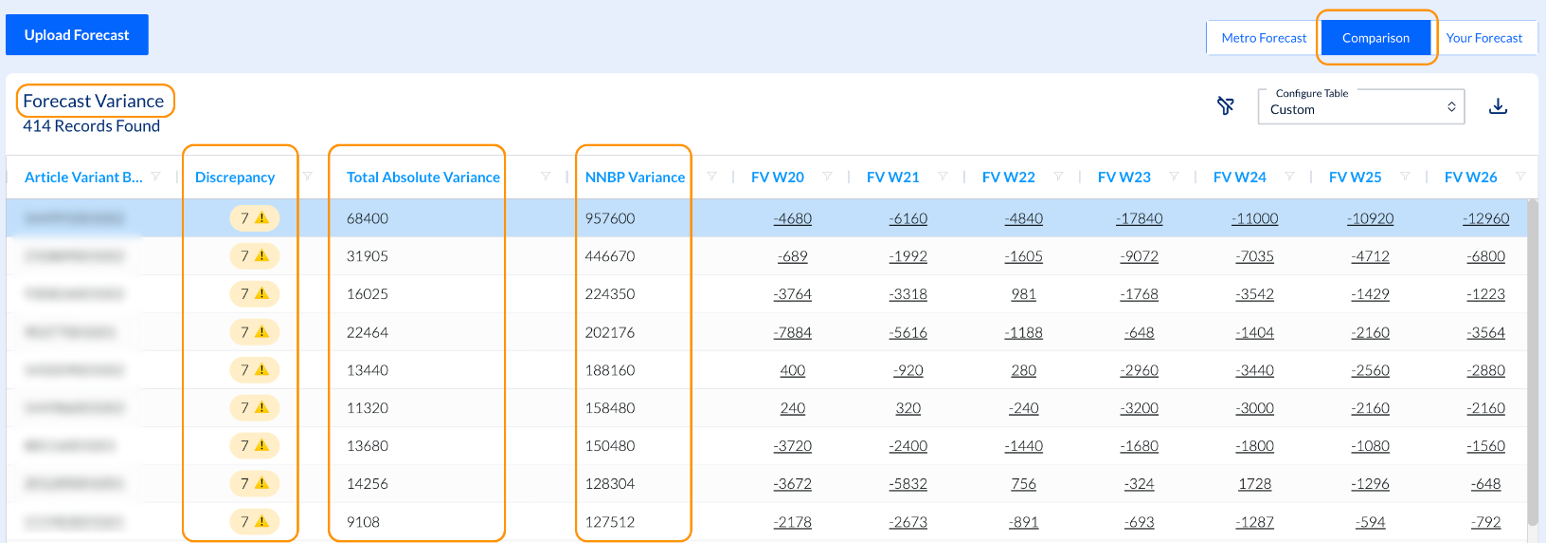
Additionally, in the main grid you can check information about Total Absolute Variance and NNBP (Net Net Buying Price) Variance.
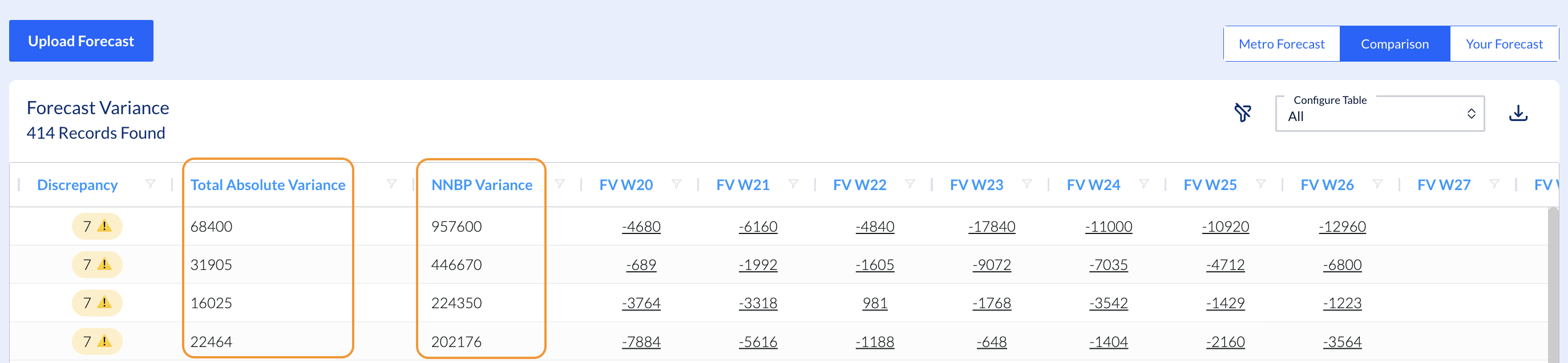
Total Absolute Variance calculates all the differences for entire forecasted period, not considering if the difference is positive or negative. The variance itself (delta between Metro's forecast and your forecast) will be calculated.
E.g. in the capture above: 468+6160+4840+17840+11000+10920+12960 = 68400
NNBP Variance reflects the absolute difference, for entire forecast period, expressed in money.
NOTE: The grid from Comparison tab is sorted by NNBP Variance (from the highest amount on top to the smallest one on the bottom).
Comments
The Comparison grid gives you the possibility to communicate with Metro by leaving and receiving comments. You have two options to do this:
1. leave a comment for a particular week, by clicking on that particular week underlined number in the grid. In the pop-up window, you can add your comment and send it to Metro.
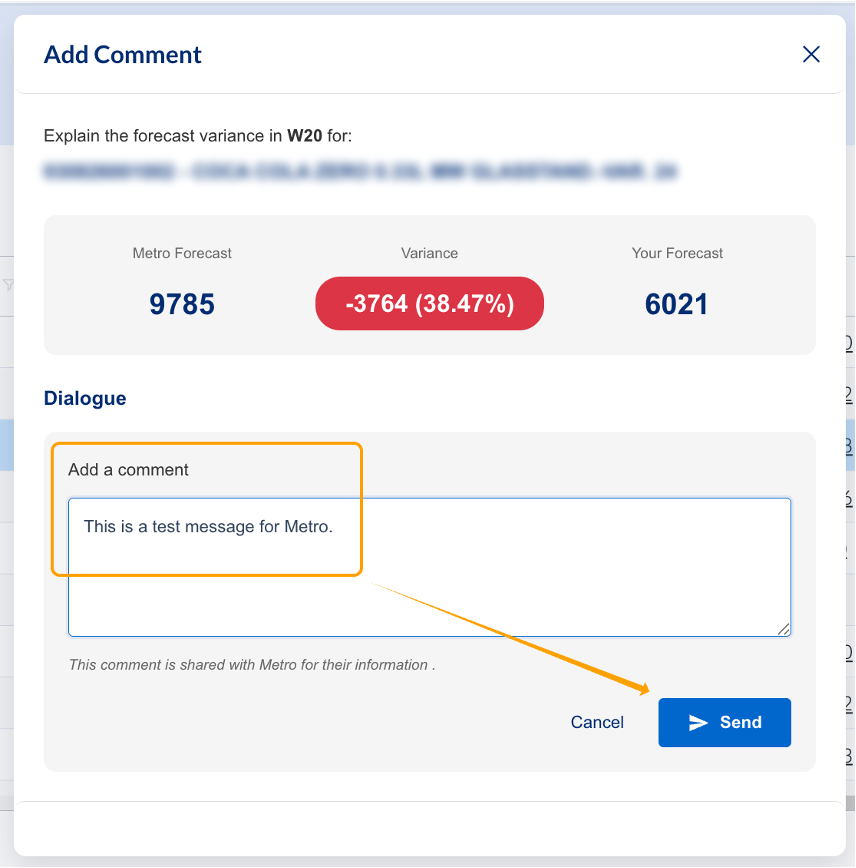
You will see a message in the upper side of the page Data saved successfully and your comment on the bottom. You can edit the comment ("pen" sign), but cannot delete it. Update button will be enabled (become blue) as soon as any change is done in the comment.
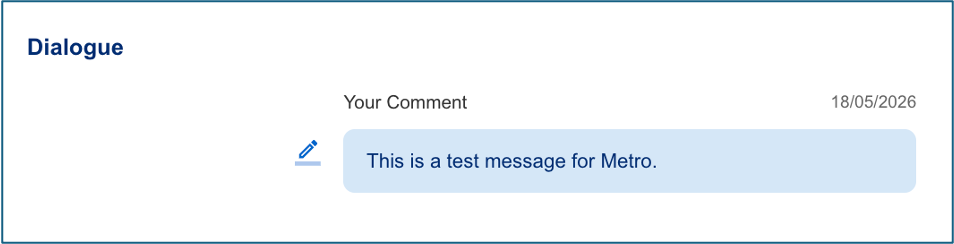
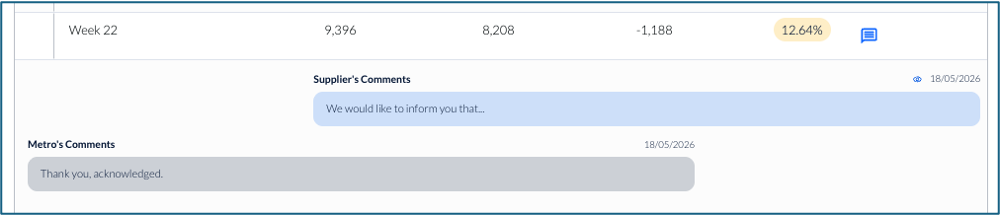
This comment will be visible on Metro's side and Metro admin will have the possibility to answer to you, if needed.
NOTE: Your comment is editable only until Metro admin reads it ("eye" icon will appear).
Please note that you can leave only one message for each week of an article. Metro can also enter only one reply.
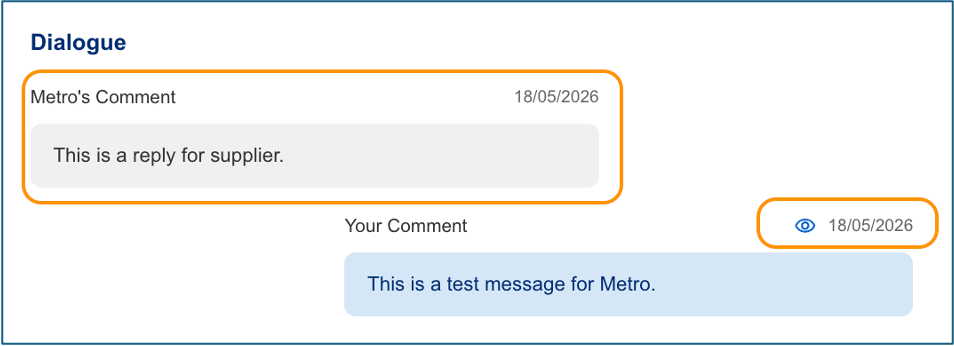
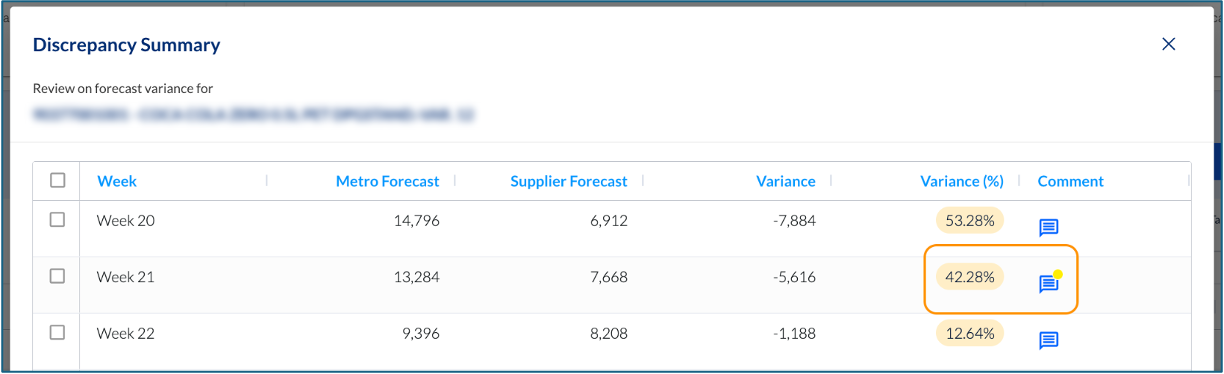
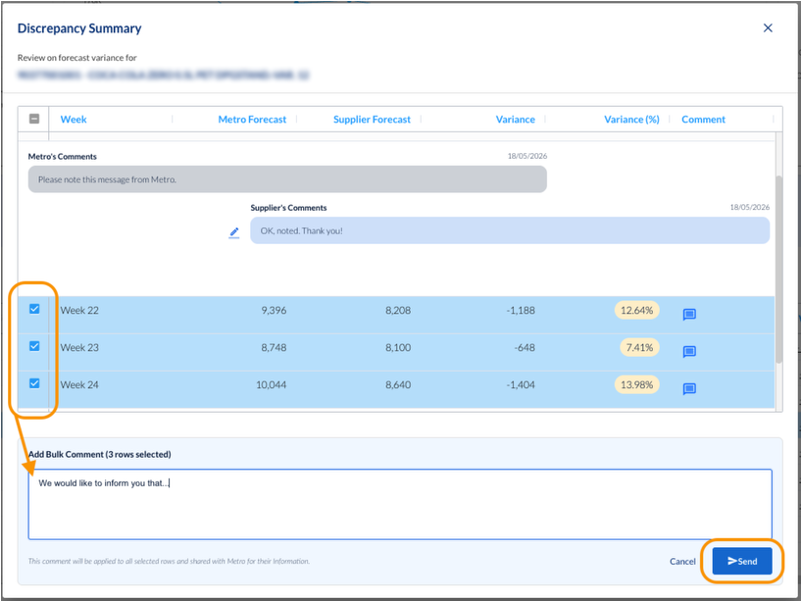
2. use the Discrepancy Summary window for a specific article to send a comment for a particular week to Metro or bulk comments (by selecting several weeks). Enter your message in the Comment field which appears, then click on Send. If Metro replies to you, the Comment icons in Discrepancy Summary are marked with a yellow dot. Once you read them, the dot disappears.
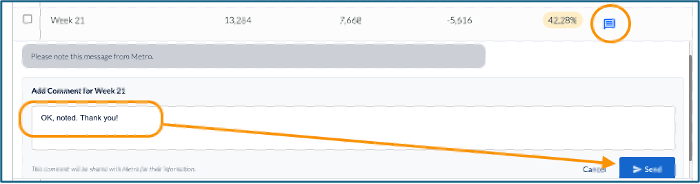
Bulk comment option:
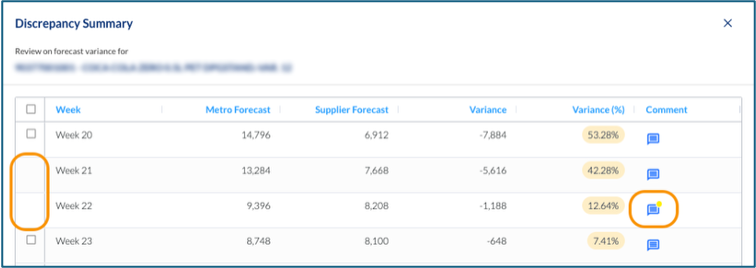
NOTE: Metro can also send you comments out of their own initiative, without you having written to them first. In this case, the Comment icon is highlighted with the yellow dot.