
How to Register in Metro Link Plus & access eSourcing
If you are a new supplier contact and need access to METRO Link Plus (MLP) and eSourcing, your METRO Buyer can invite you to register or request an invitation on your behalf.
If your company is already onboarded in METRO Link Plus and one of your colleagues has Supplier Admin access, they can also invite you directly. For instructions, see Invite colleagues from your company to eSourcing.
Registration takes approximately 5–10 minutes. During the process, you will verify your company information, enter your contact details, accept the required documents, and submit your request for METRO approval. Once approved, you will receive an email with instructions to complete your account setup and access eSourcing.
Important: We recommend completing the registration in one session, as your progress may not be saved before the registration is submitted.
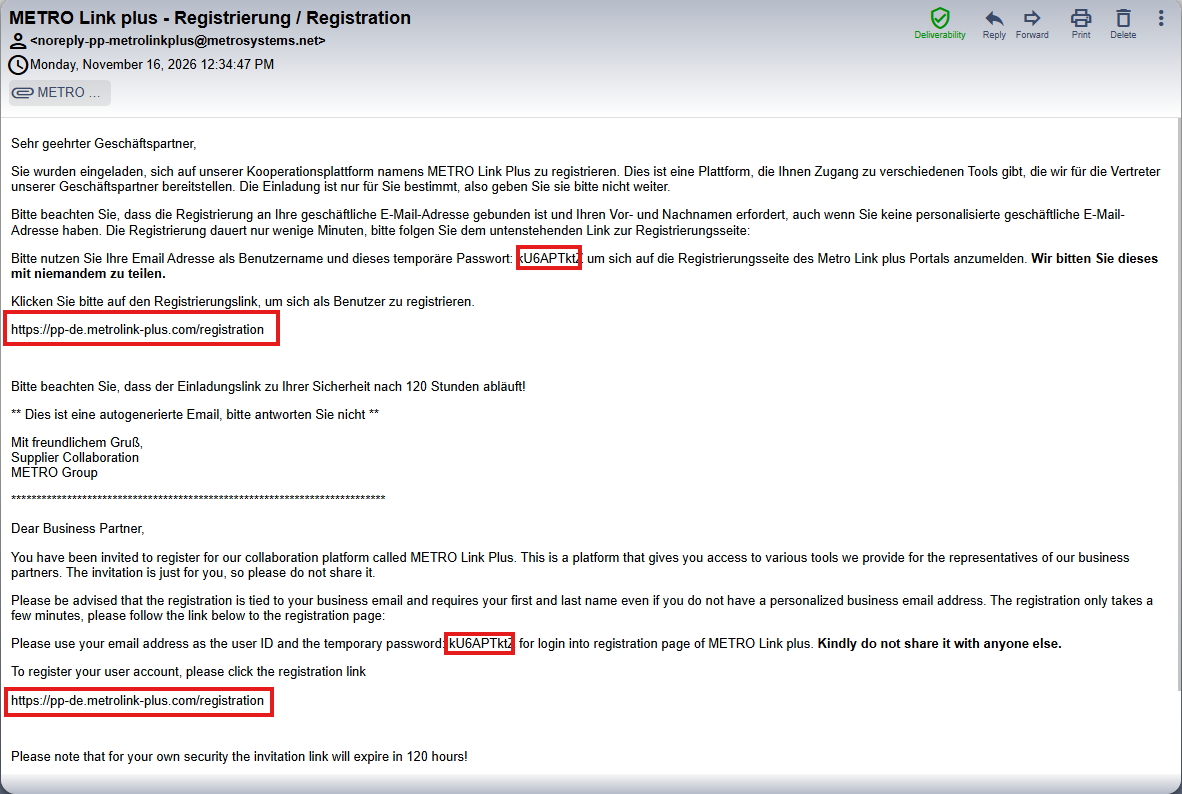
Open the registration invitation received by email.
The email is provided in English and in the local language of the METRO country from which you received the invitation.
- Click the registration link provided in the email.
- Copy the temporary password included in the invitation.
- Please note that the temporary password is valid for 5 days.
2. Start Your Registration
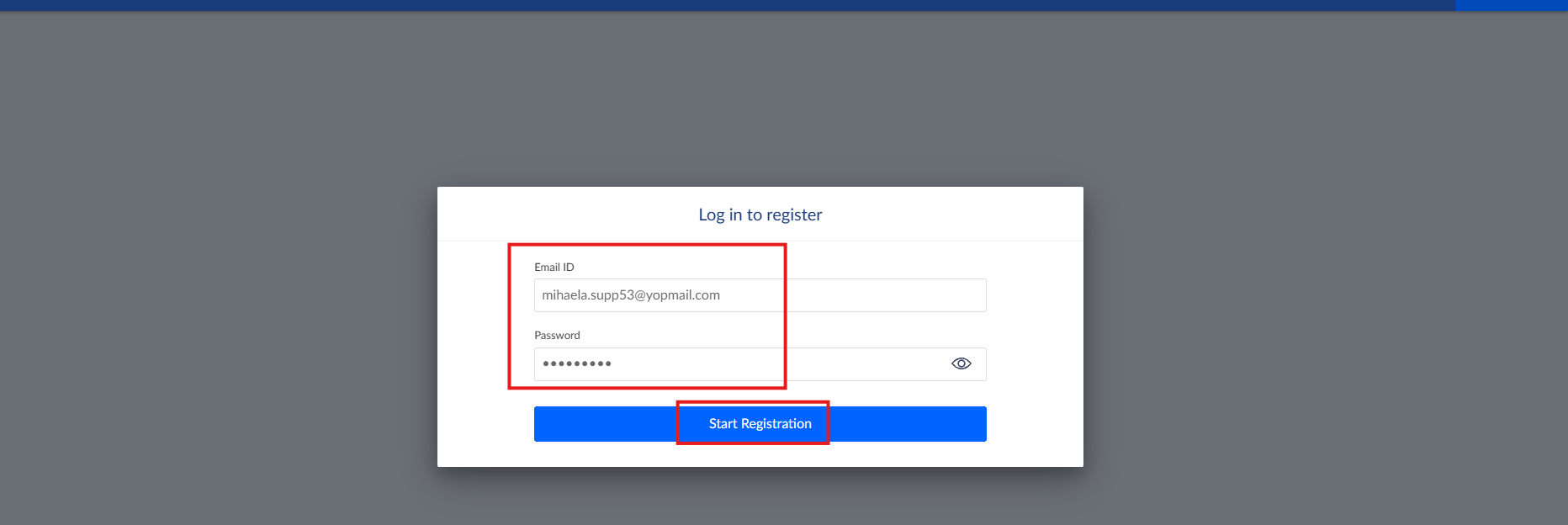
On the login page, enter:
- Email ID: The email address on which you received the invitation.
- Password: The temporary password provided in the invitation email.
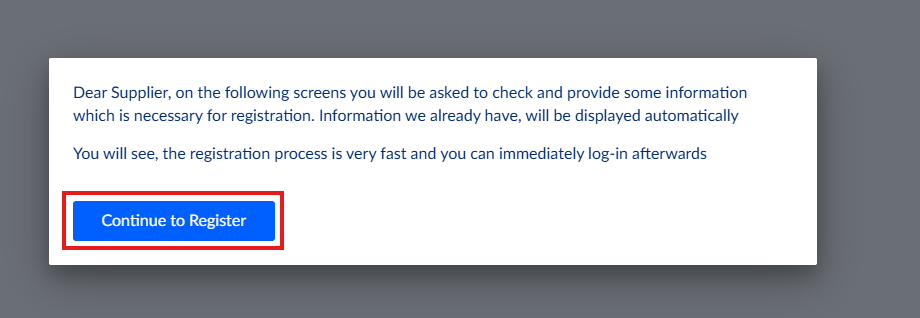
Click Start registration, then click Continue to begin the registration process.
3. Check Your Company Information
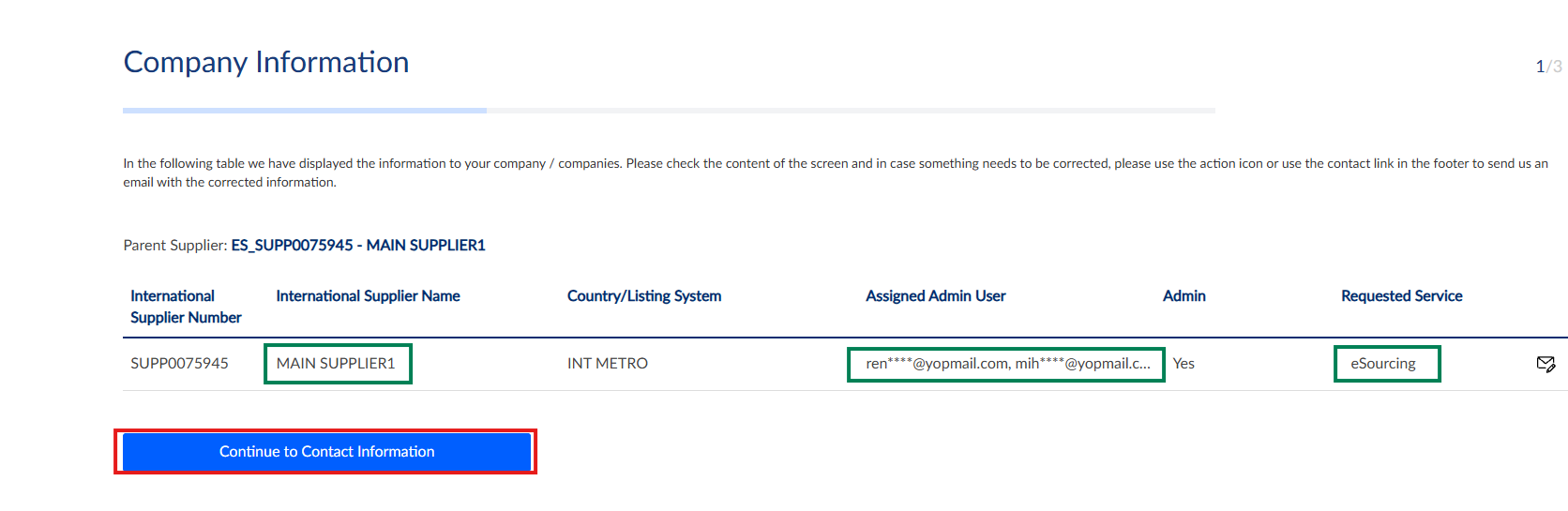
On the next page, you will see:
- The company name for which you are registering.
- The requested service, in this case eSourcing.
- Partially hidden email addresses of existing Admin Users registered for your company, if applicable.
Check that the company information is correct.
If everything is correct, click Continue to contact information.
Important: If the displayed company is incorrect, do not continue with the registration. Contact the METRO buyer who invited you.
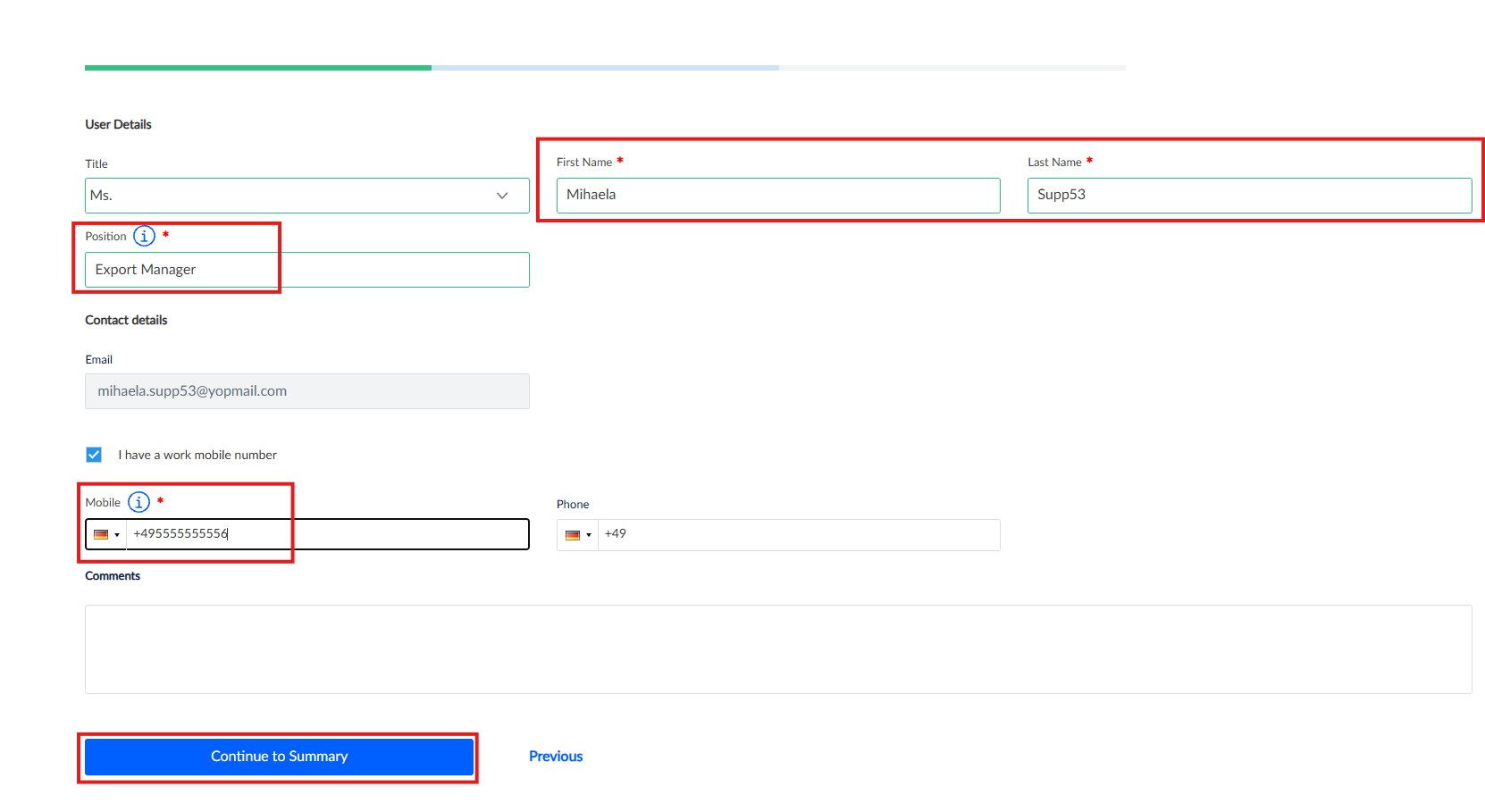
4. Complete Your User Details
Enter or verify your personal information.
Your First Name and Last Name are pre-filled based on the information used when the invitation was created. Correct them if necessary.
Then:
- Enter your Position.
- Enter your Phone Number.
- Click Continue to summary.
5. Submit Your Registration
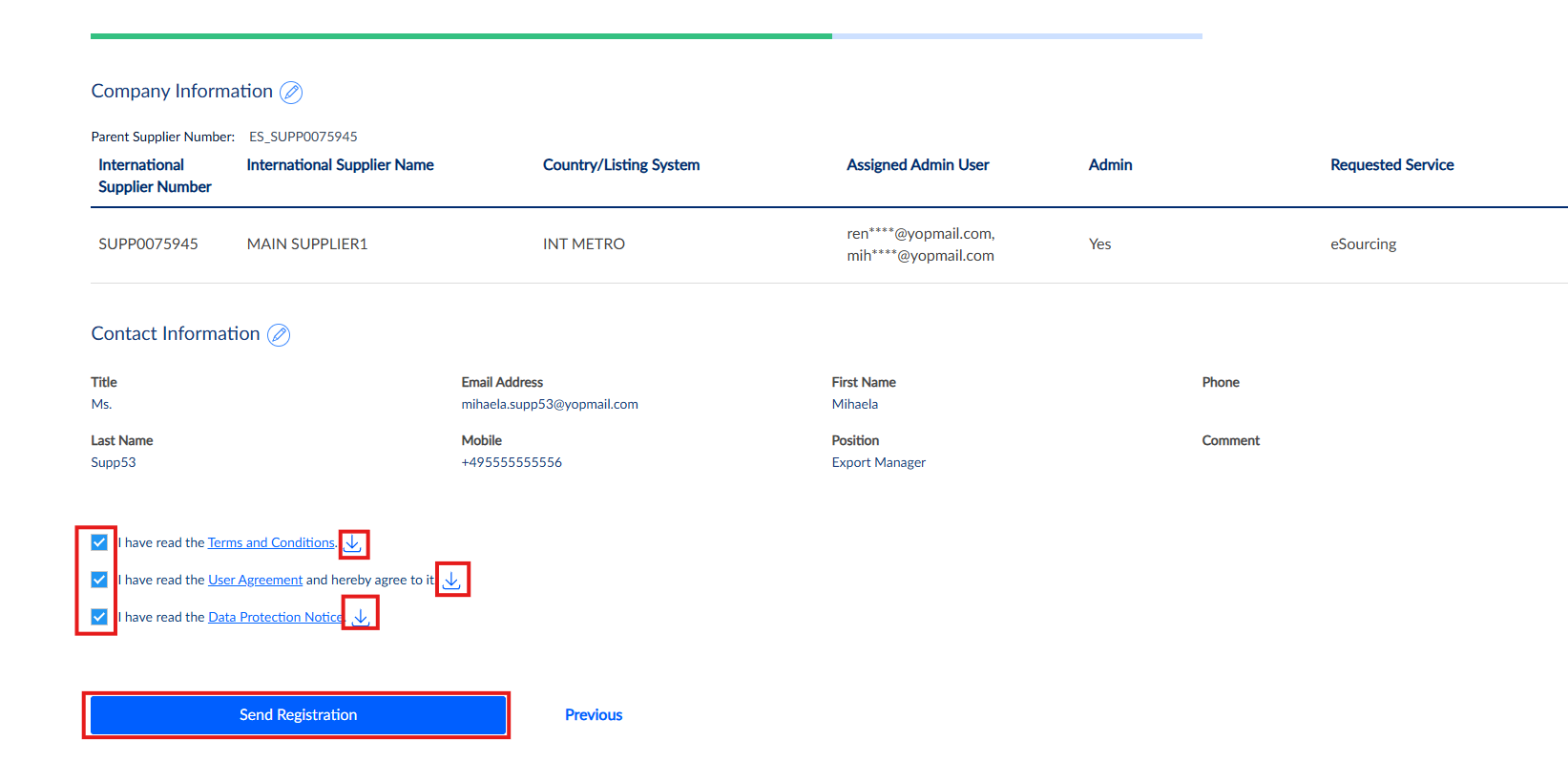
Review the registration summary and make sure all information is correct.
Before submitting:
- Download and read the Terms and Conditions.
- Download and read the User Agreement.
- Download and read the Data Protection Notice.
- Select all three confirmation checkboxes.
- Click Send registration.
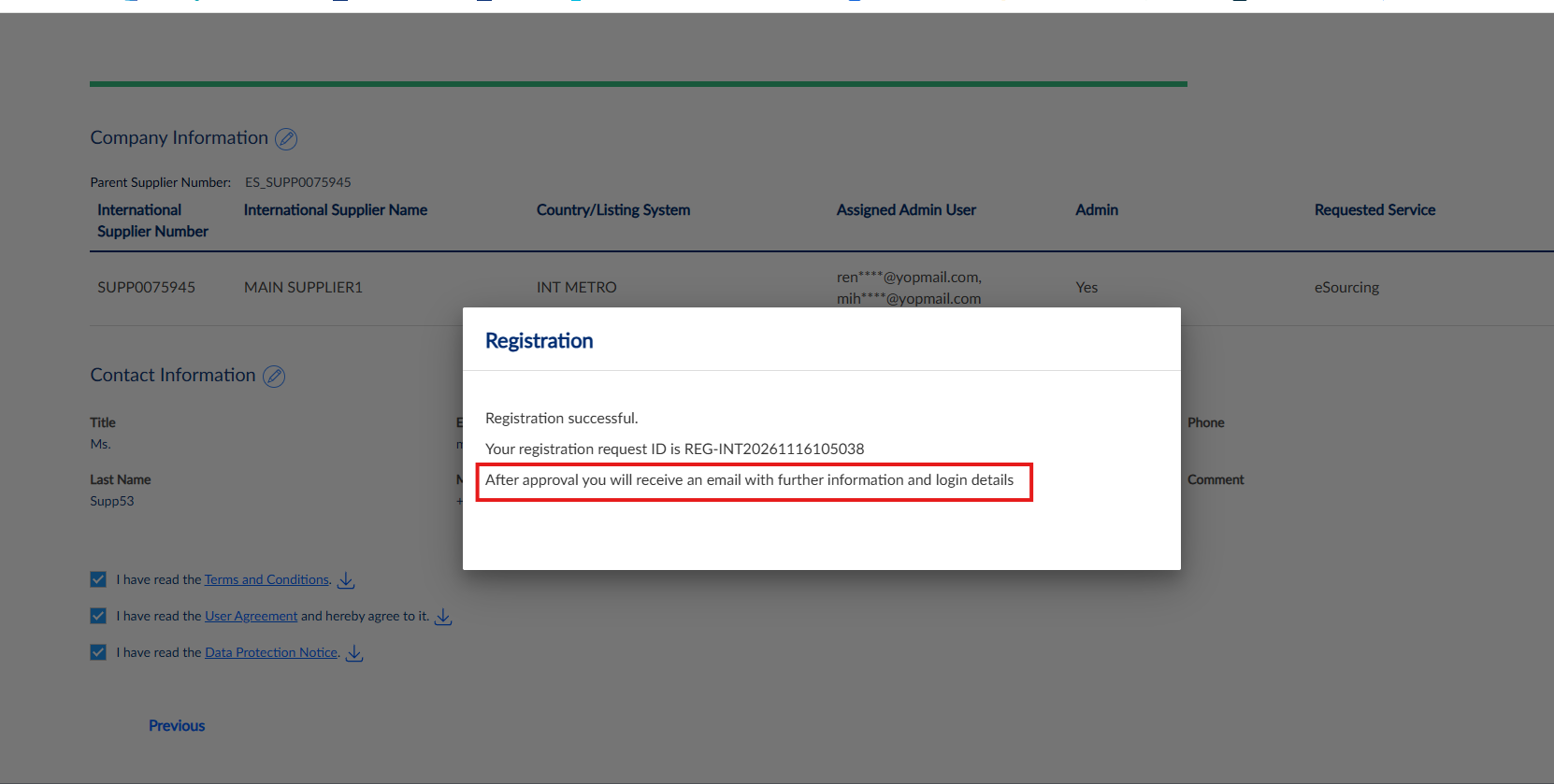
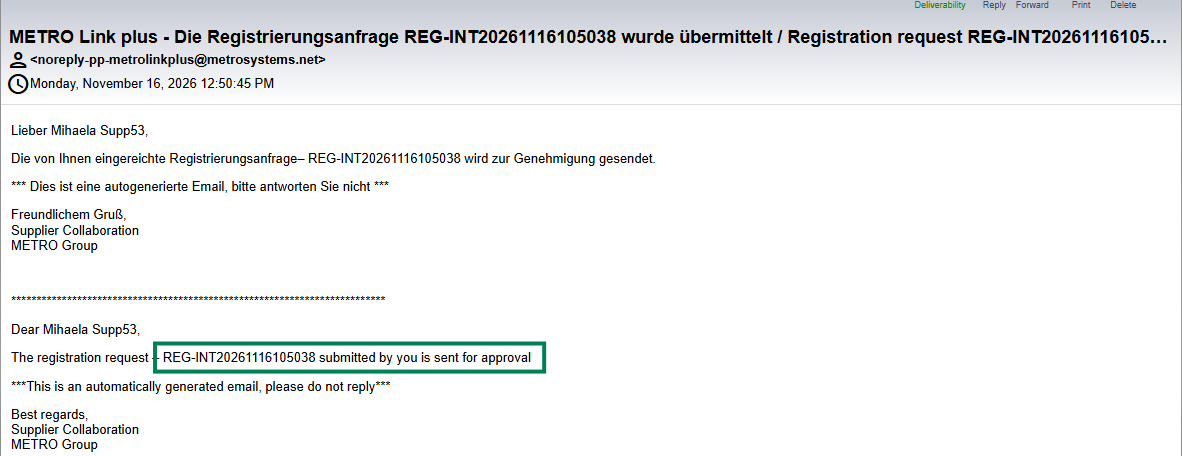
Once submitted, a confirmation message will appear and you will also receive an email.
Your registration request is now sent to the METRO buyer who invited you for approval.
Please wait until your registration is approved. Once approved, you will receive another email with instructions for completing your account setup.
6. Complete Your Account Setup After METRO Approval
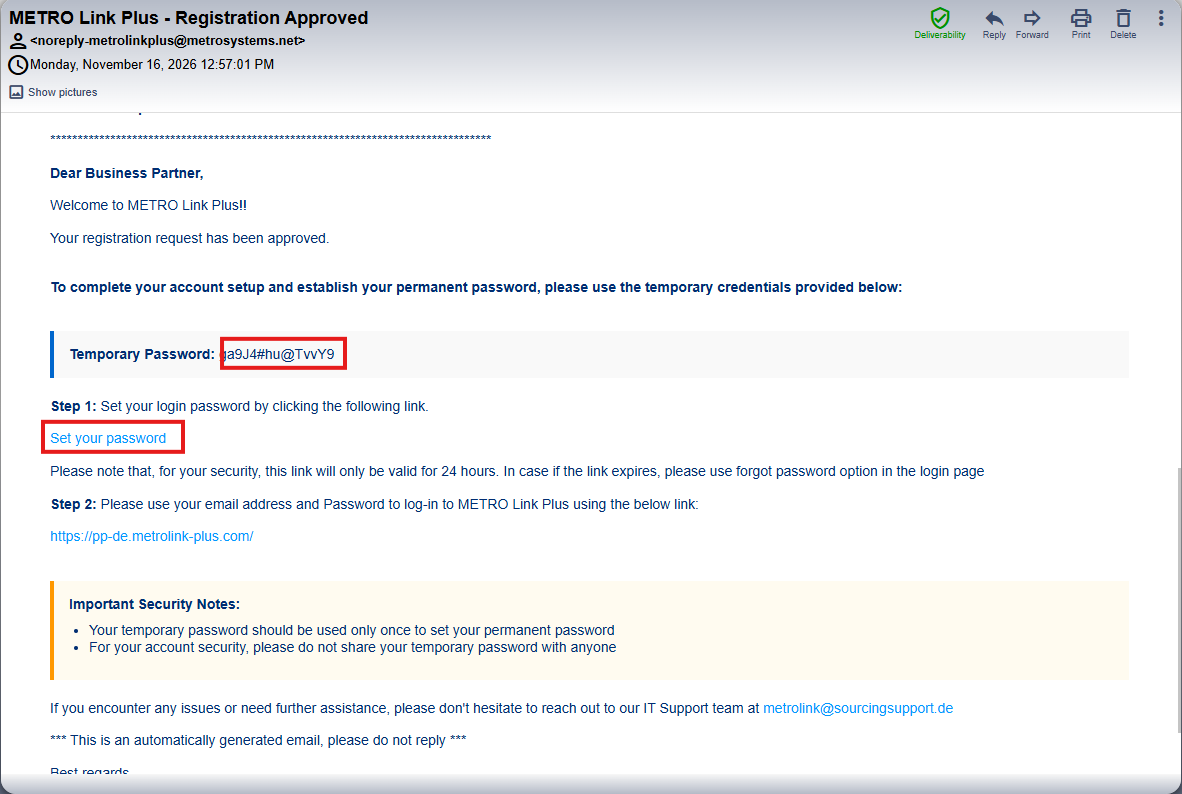
Once your registration has been approved, you will receive an approval email.
- Click the Set your password link in the email.
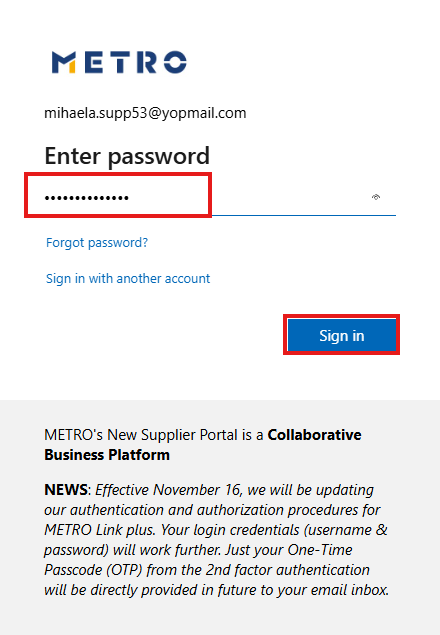
- Enter the temporary password provided in the approval email.
- Click Sign In.
Two-Factor Authentication
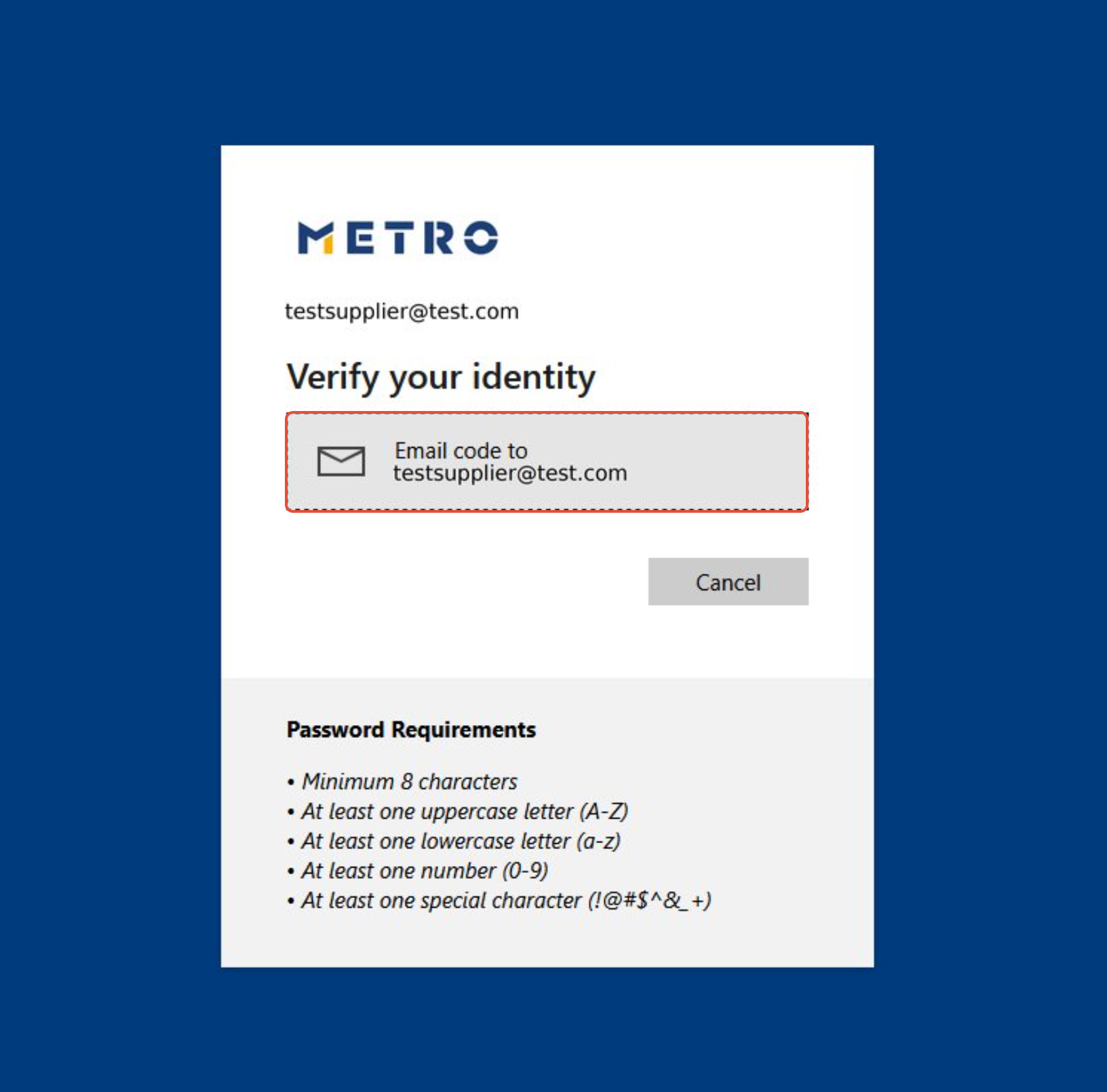
For security reasons, Two-Factor Authentication (2FA) using a One-Time Passcode (OTP) is required.
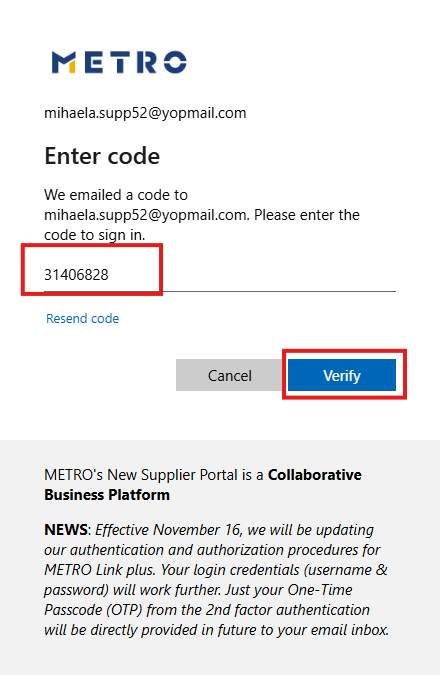
- Click Email code to send a verification code to your registered email address.
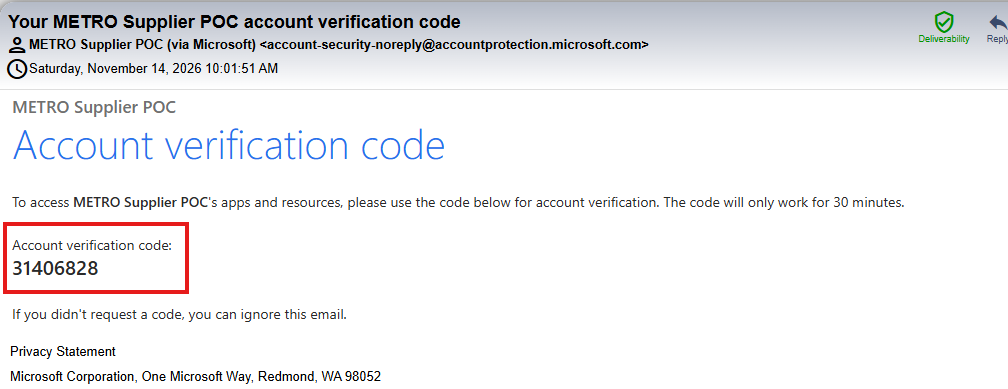
- Check your email inbox.
- Enter the received code.
- Click Verify.
Create Your New Password
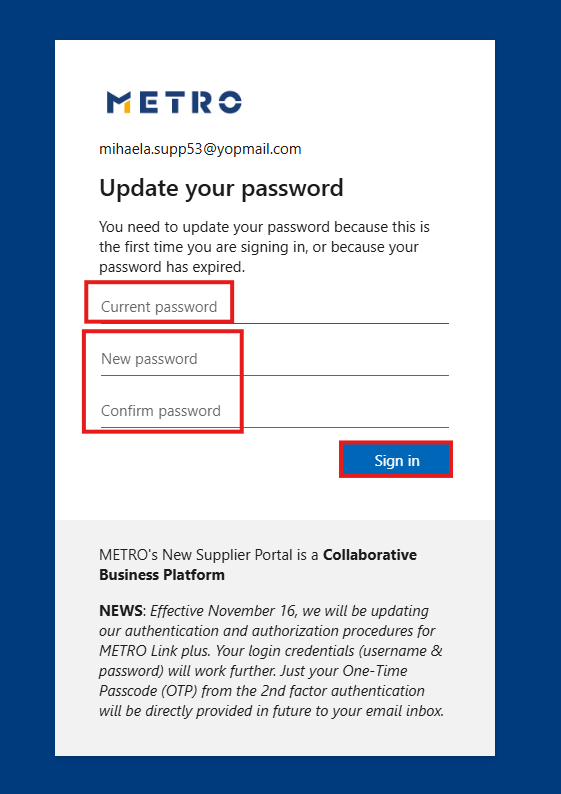
After OTP verification, the Update your password screen will appear.
Enter:
- Current password: The temporary password received in the approval email.
- New password: Your new personal password.
- Confirm password: Enter your new password again.
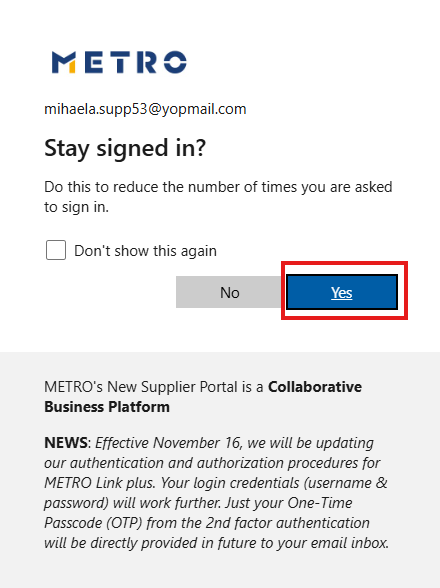
Complete the password update.
7. Access eSourcing
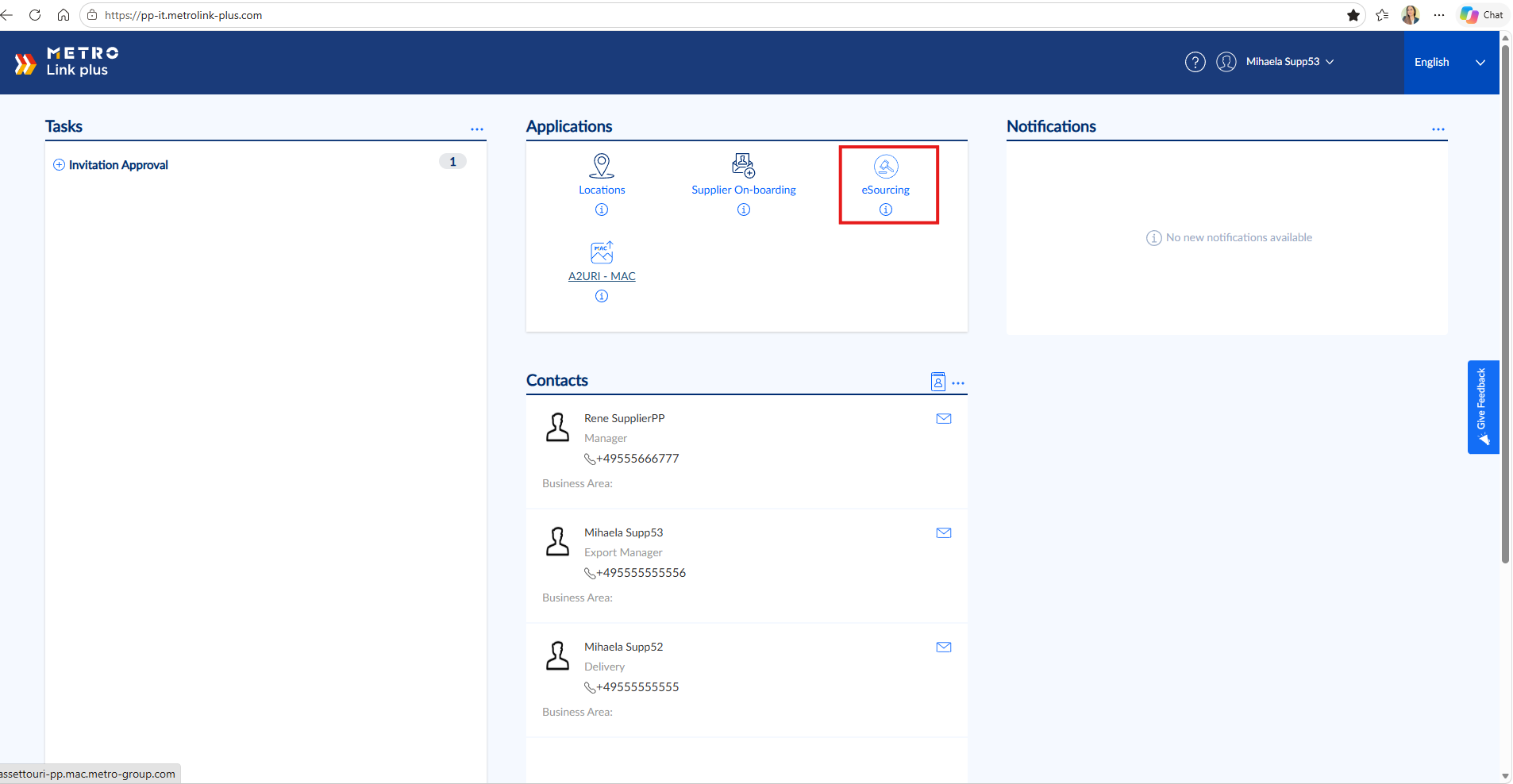
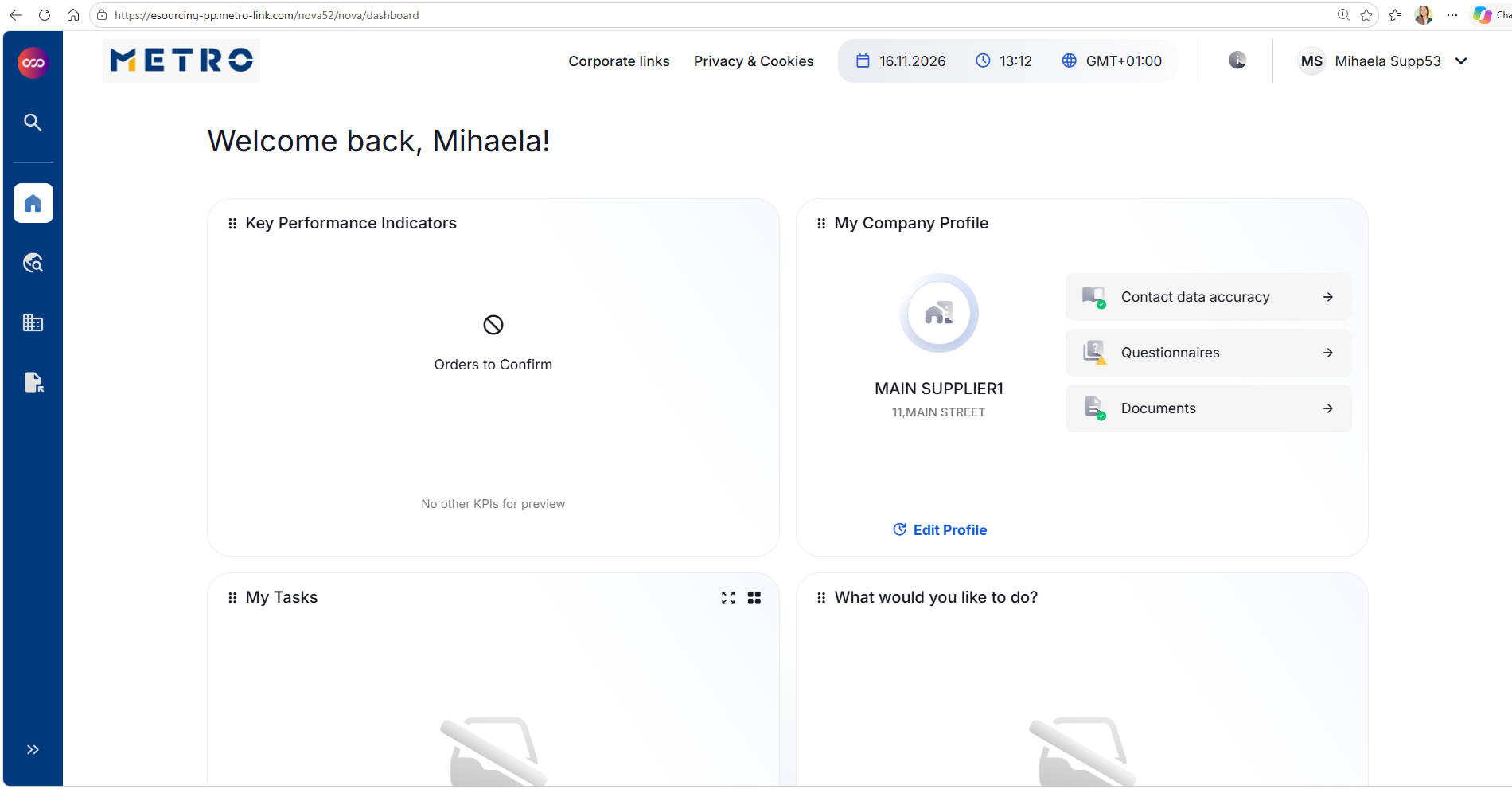
Once logged in to METRO Link Plus, click the eSourcing icon to open the online tendering application.
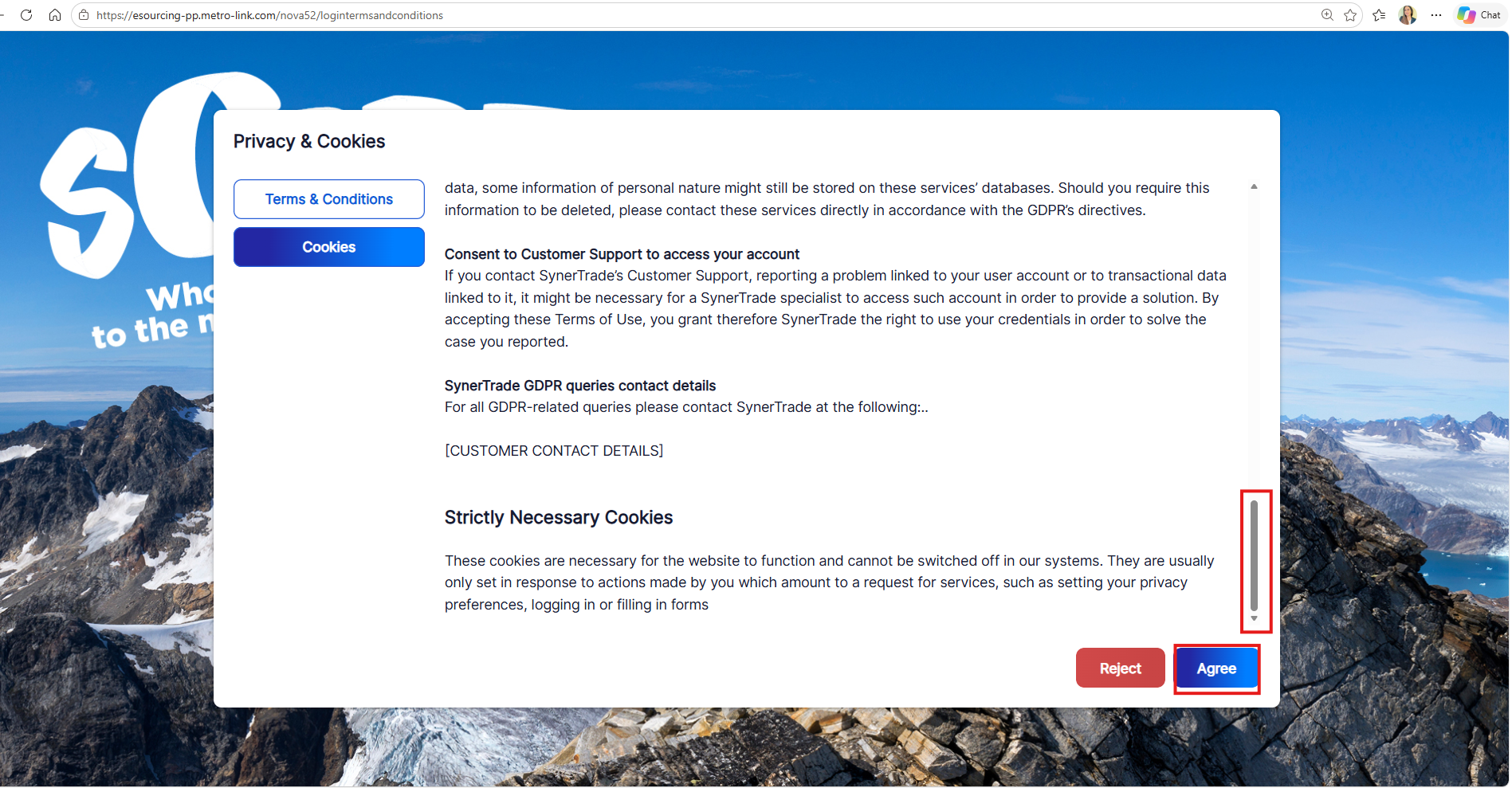
On your first access to eSourcing, you will be asked to read and accept the eSourcing Terms and Conditions.
After accepting them, you will be directed to the eSourcing Dashboard.
Note: The eSourcing Terms and Conditions screen appears only during your first access.
Future Access to METRO Link Plus and eSourcing
For future access, you can use the URL provided in your approval email or follow the instructions in the separate How to Access eSourcing via METRO Link Plus guide.
For more information about using eSourcing, see the eSourcing Supplier Guides.
If you would need further assistance, please click HERE for our contact details