
Once you have completed your registration in METRO Link Plus (MLP), you can access eSourcing in two ways:
- Via METRO Link Plus
- Directly from the eSourcing login page using EXTERNALID
For registration instructions, refer to the Supplier Registration in METRO Link Plus article.
1. Login via METRO Link Plus
Step 1: Open METRO Link Plus
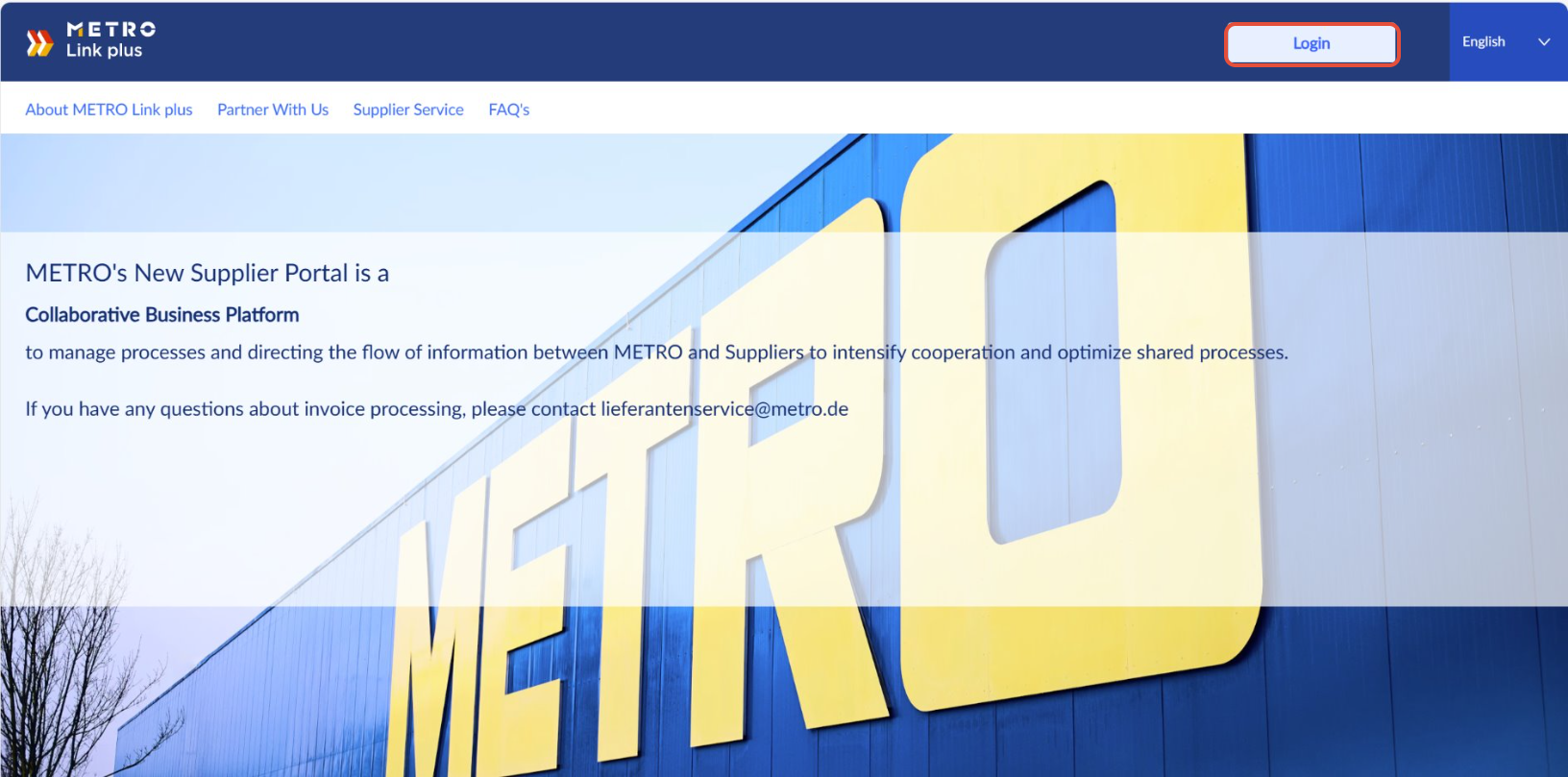
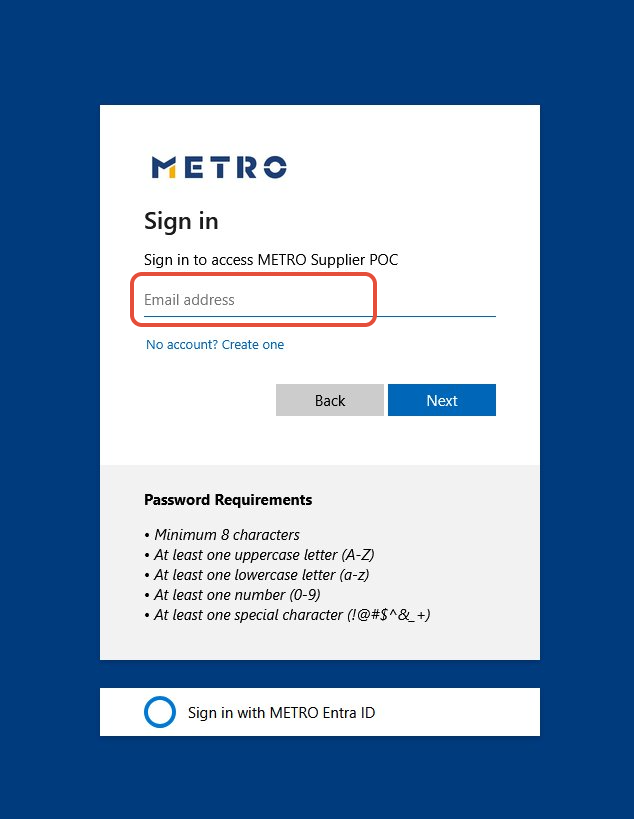
Step 2: Enter your credentials
- Login: Your registered email address
- Password: The password created during your METRO Link Plus registration
If you have forgotten your password, use the Forgot password option on the login page.
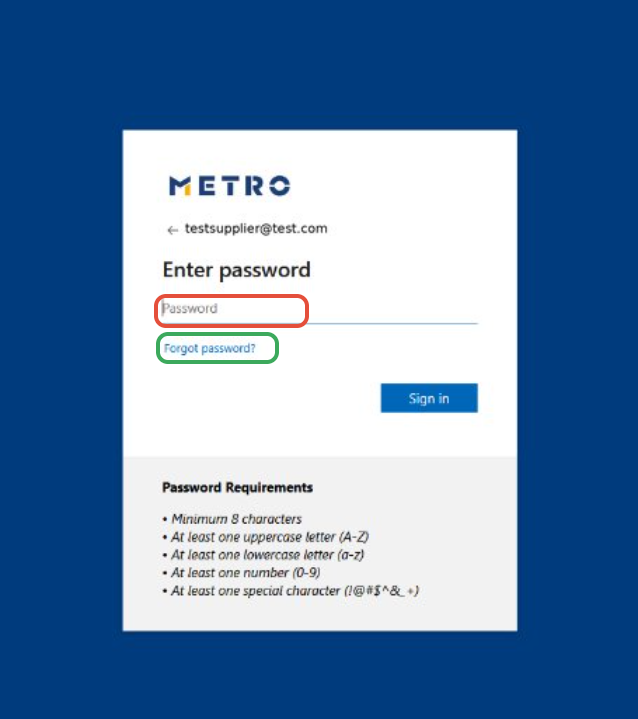
Step 3: Complete Two-Factor Authentication
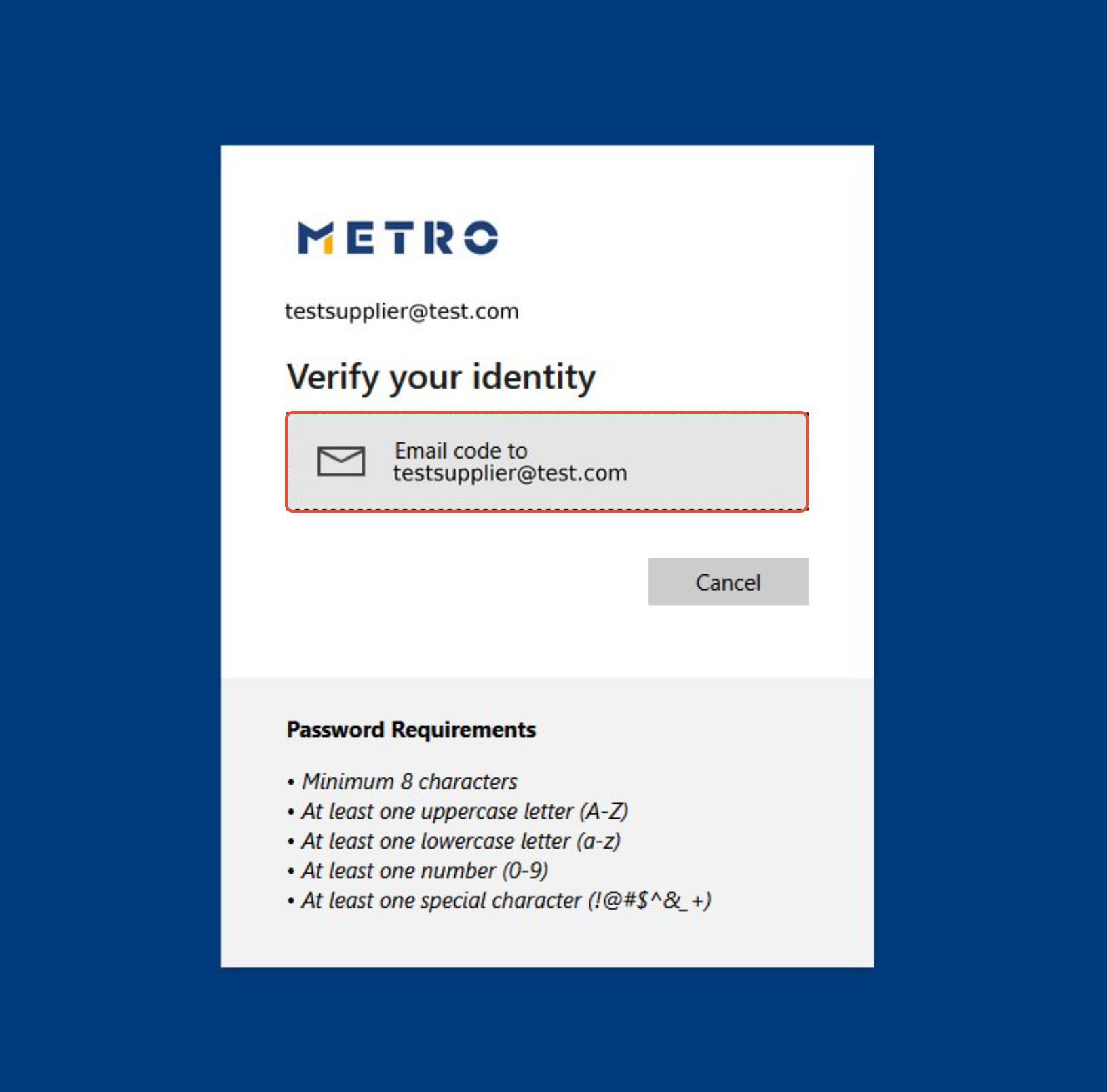
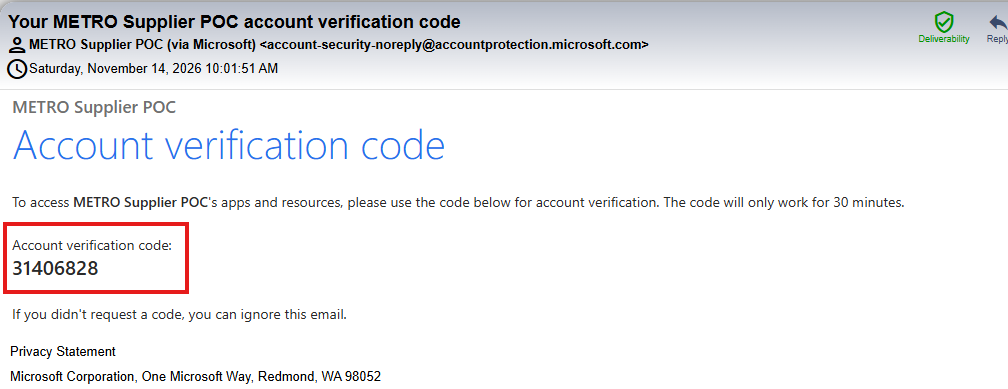
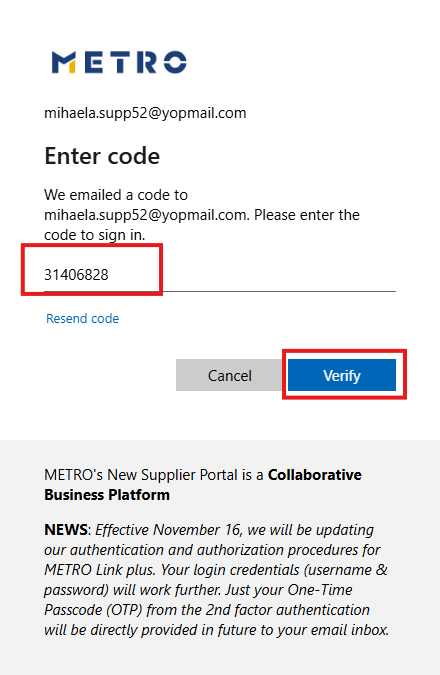
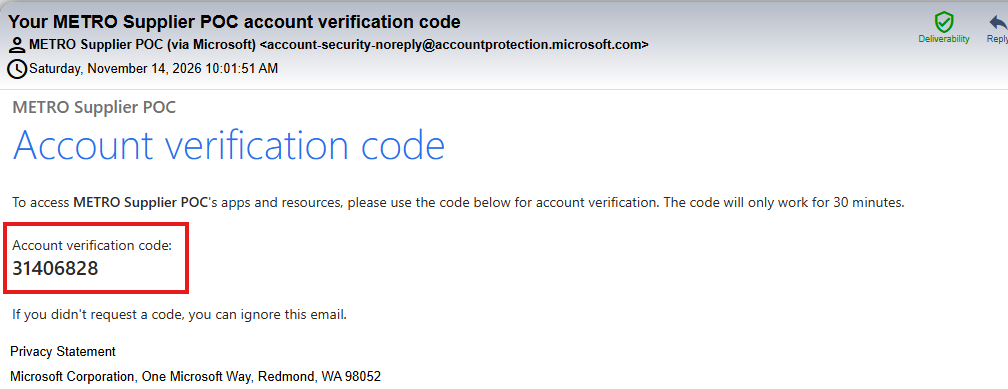
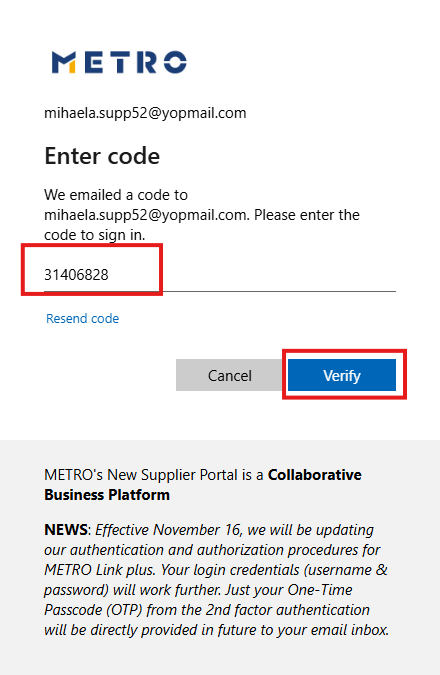
For security reasons, Two-Factor Authentication (2FA) with a One-Time Passcode is required.
- Click Email code to send a verification code to your registered email address.
- Check your email inbox.
- Enter the received code to complete the login.
Step 4: Access eSourcing
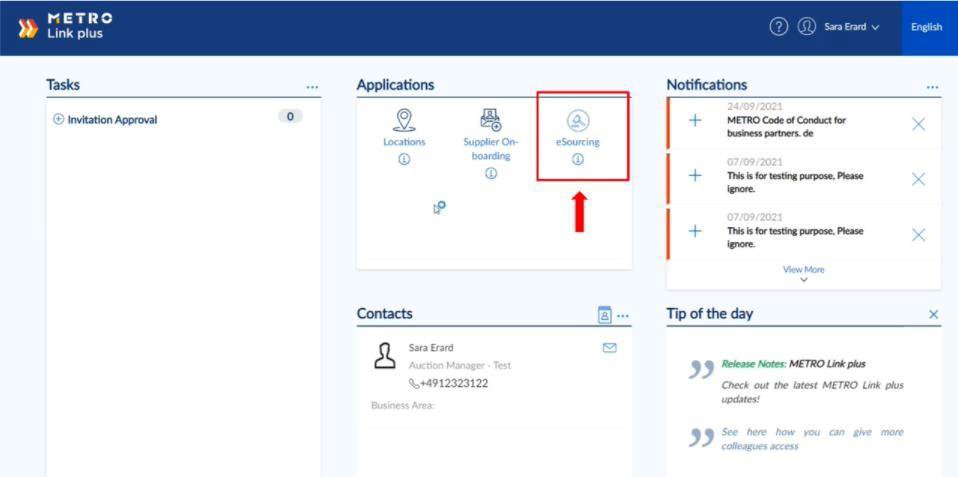
Once logged in to METRO Link Plus, click the eSourcing icon.
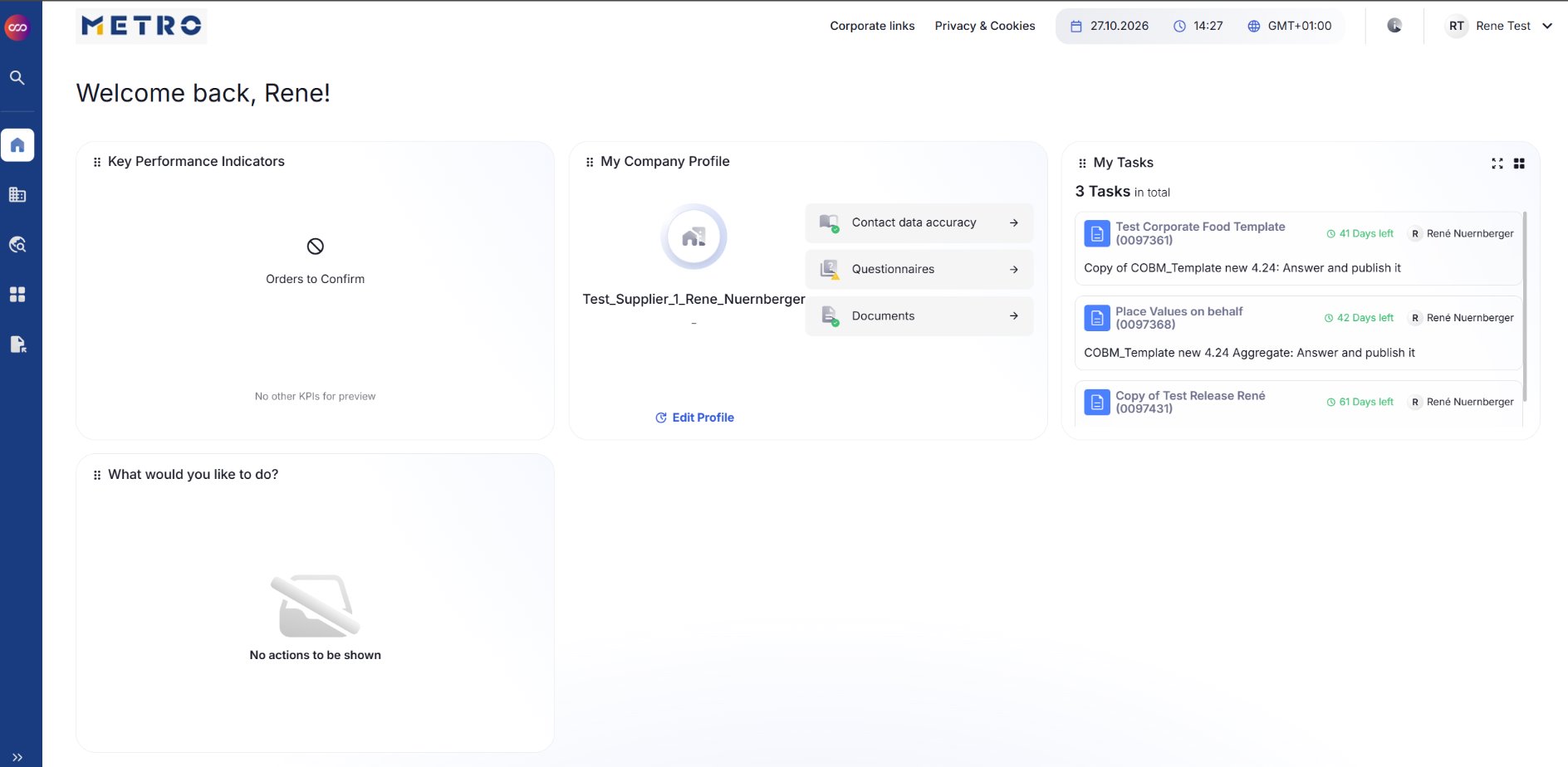
eSourcing will open directly on the Dashboard.
2. Direct Login via eSourcing
You can also access eSourcing directly without first opening METRO Link Plus.
Step 2: Select EXTERNALID
On the login page, click EXTERNALID.
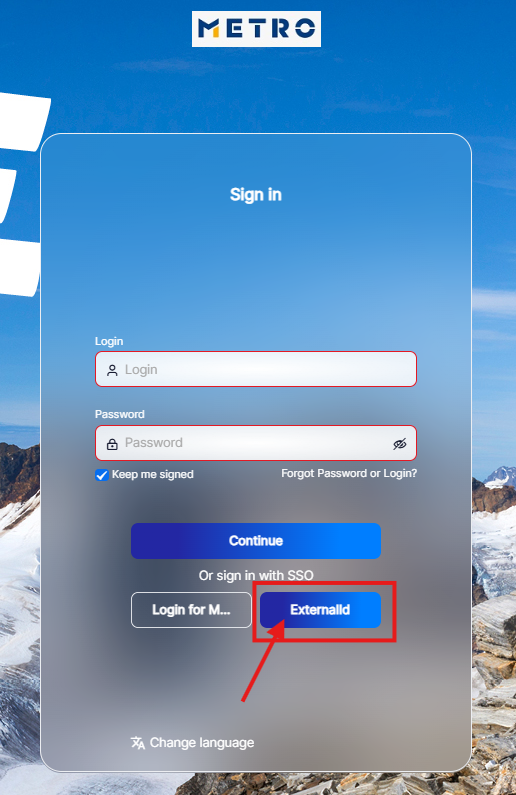
Step 3: Enter your credentials
Use the same credentials registered through METRO Link Plus:
- Login: Your registered email address
- Password: The password created during your METRO Link Plus registration
If you have forgotten your password, use the Forgot password option.
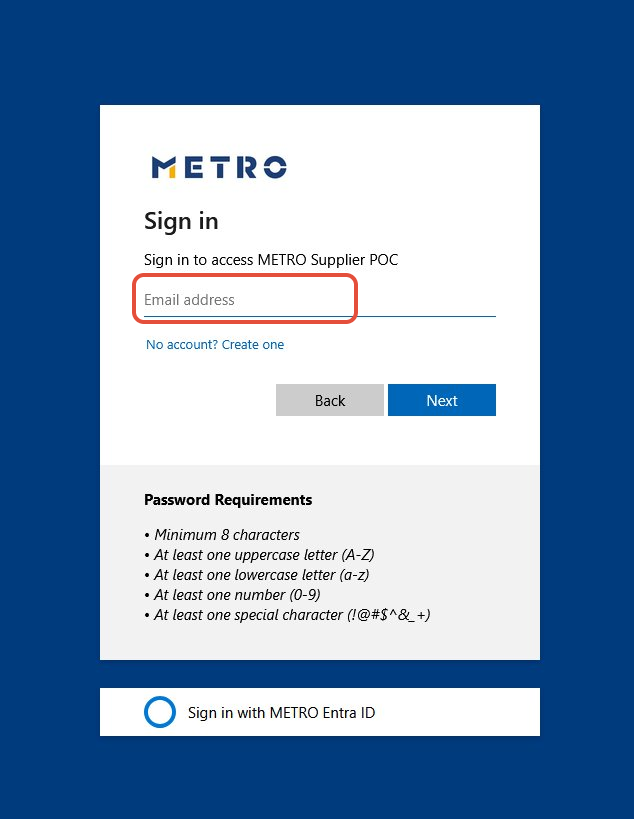
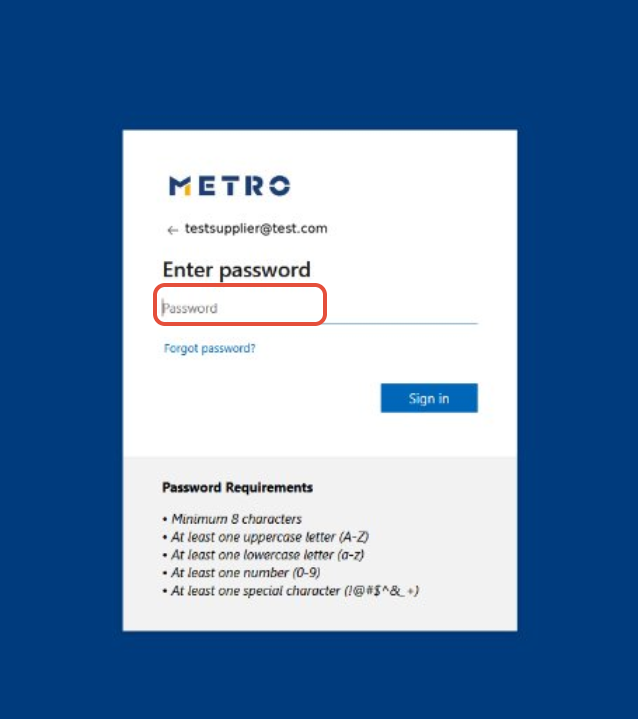
Step 4: Complete Two-Factor Authentication
- Click Email code.
- Check your registered email inbox for the One-Time Passcode.
- Enter the code to complete the login.
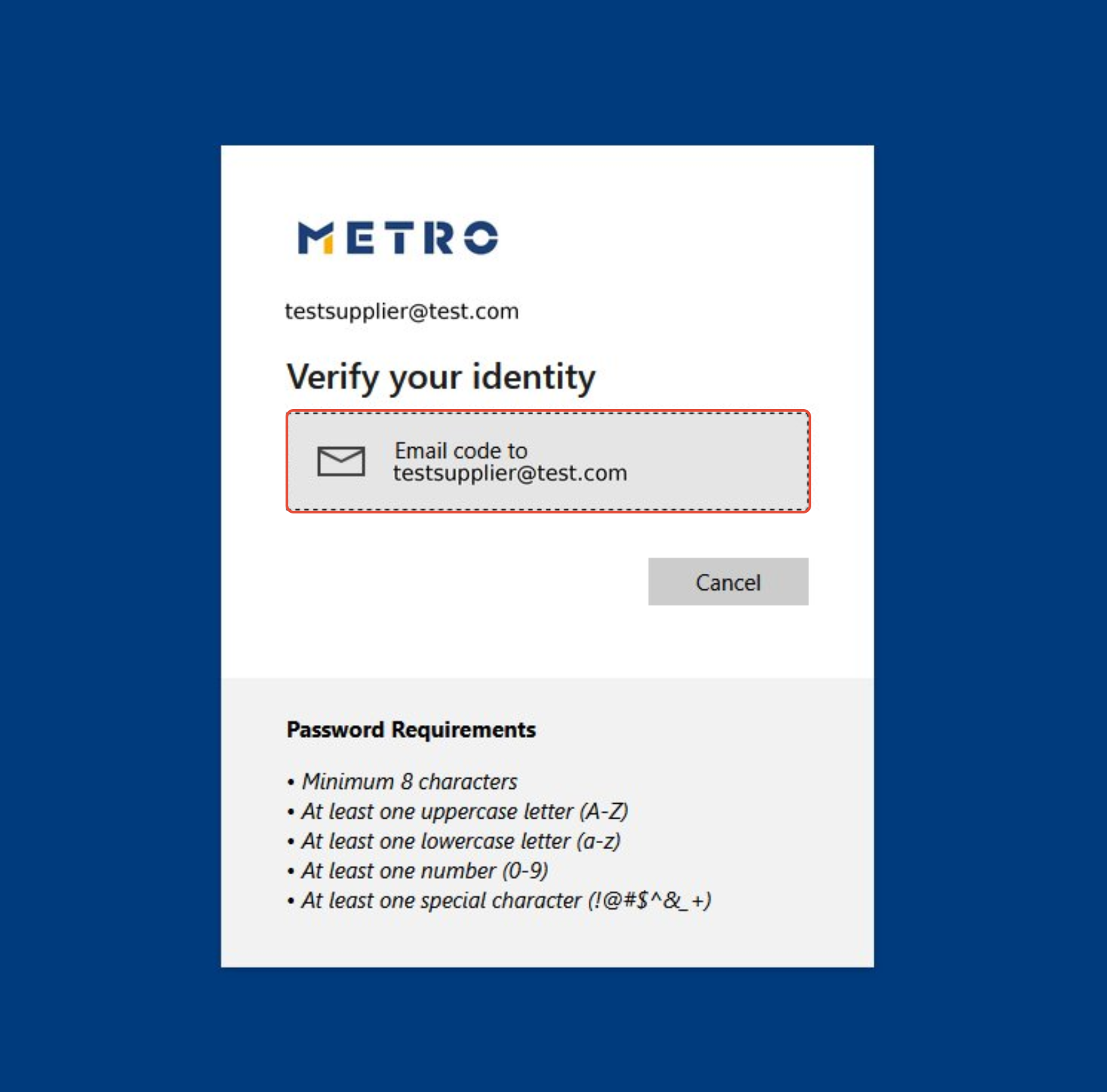
Don't have a METRO Link Plus account?
Contact your METRO buyer, who can invite you or request access on your behalf.
If your company is already onboarded and a colleague has METRO Link Plus Supplier Admin access, they can also invite you to register. See Invite colleagues from your company to eSourcing.
If you would need further assistance, please click HERE for our contact details