
1. Log in to METRO Link Plus
If you have already completed your registration, go to METRO Link Plus and sign in.
If needed, see the instructions for:
2. Access eSourcing
Once logged in to METRO Link Plus, click the eSourcing icon to open the online tendering application.
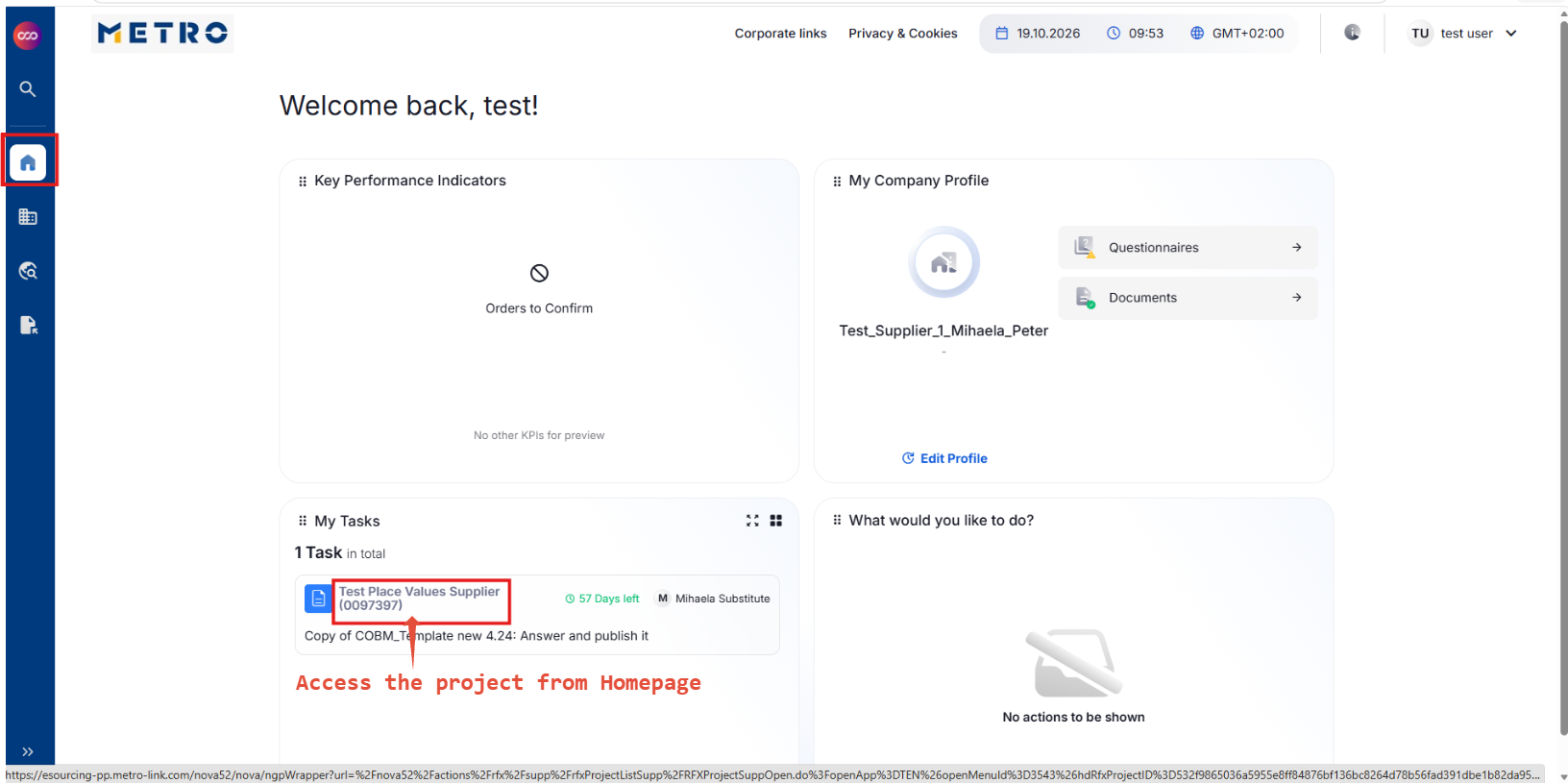
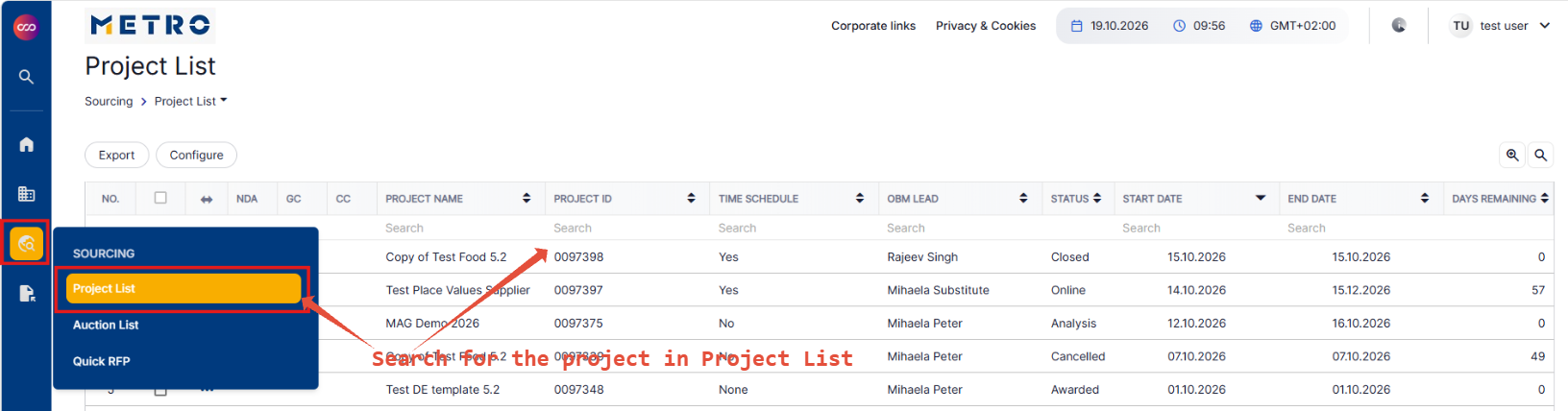
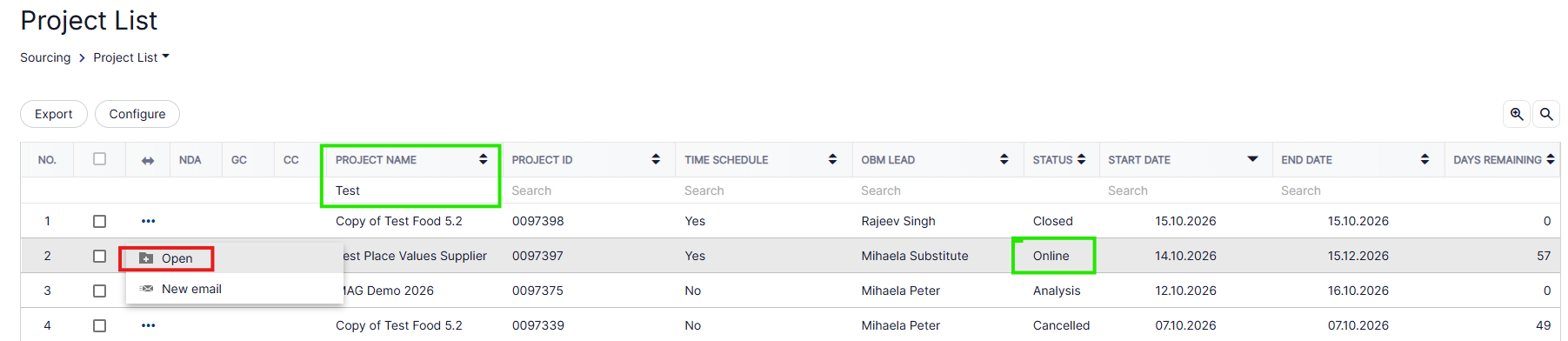
3. Open Your Project
You can access your projects in two ways:
- Homepage/Dashboard: Find the project under My Tasks and select it.
- Project List: Go to Sourcing → Project List and select the relevant project.
4. Accept the General Conditions (GC)
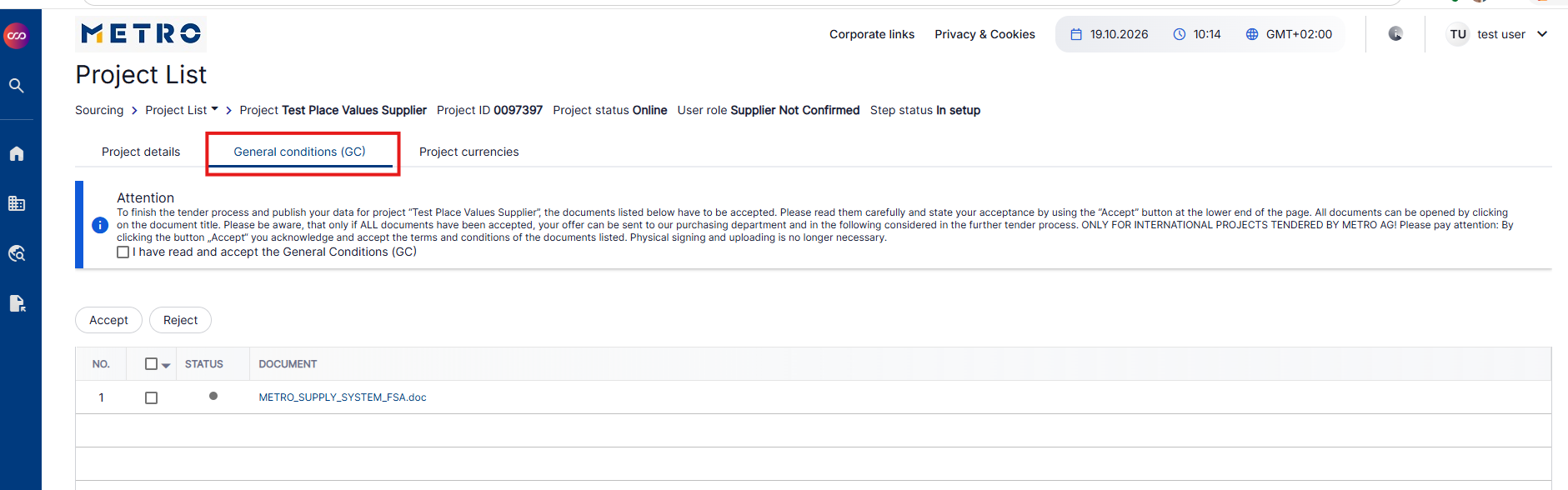
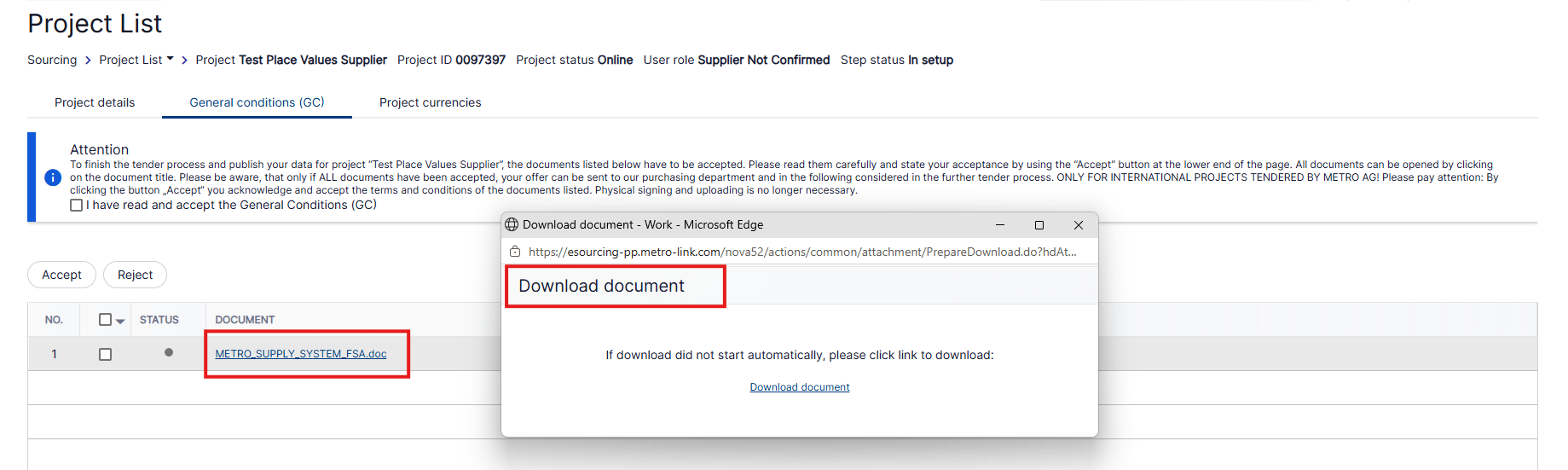
Before you can access the tender, you must accept all documents marked as General Conditions (GC).
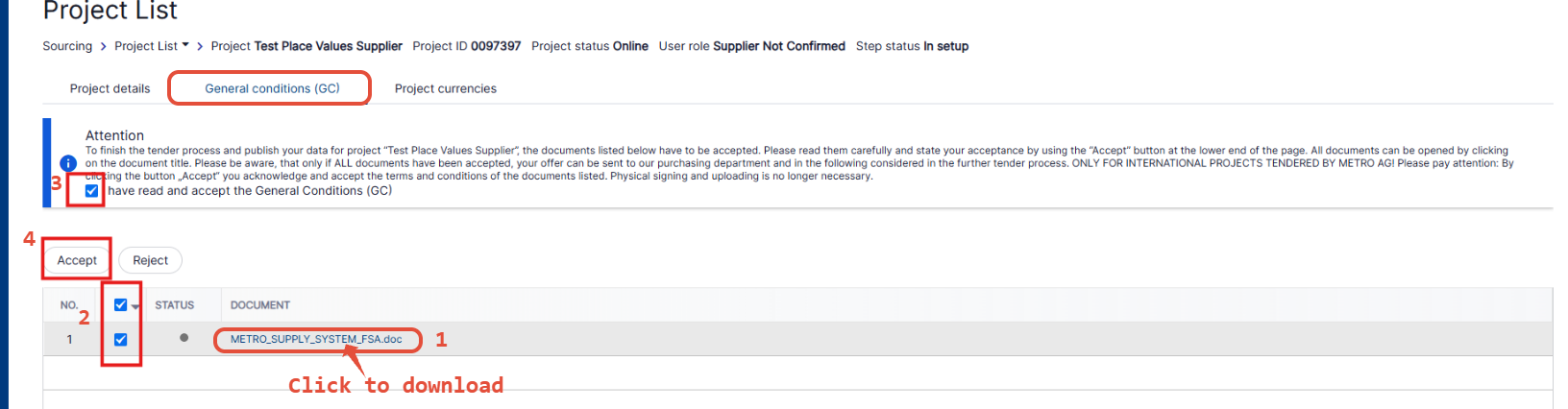
- Open and download each General Conditions document.
- If there is more than one document, you must open and download each document separately.
- If several General Conditions are provided in a single ZIP file, open and download the ZIP file and review all documents.
- Select all document lines.
- Tick “I have read the participation conditions.”
- Click Accept.
5. General Information
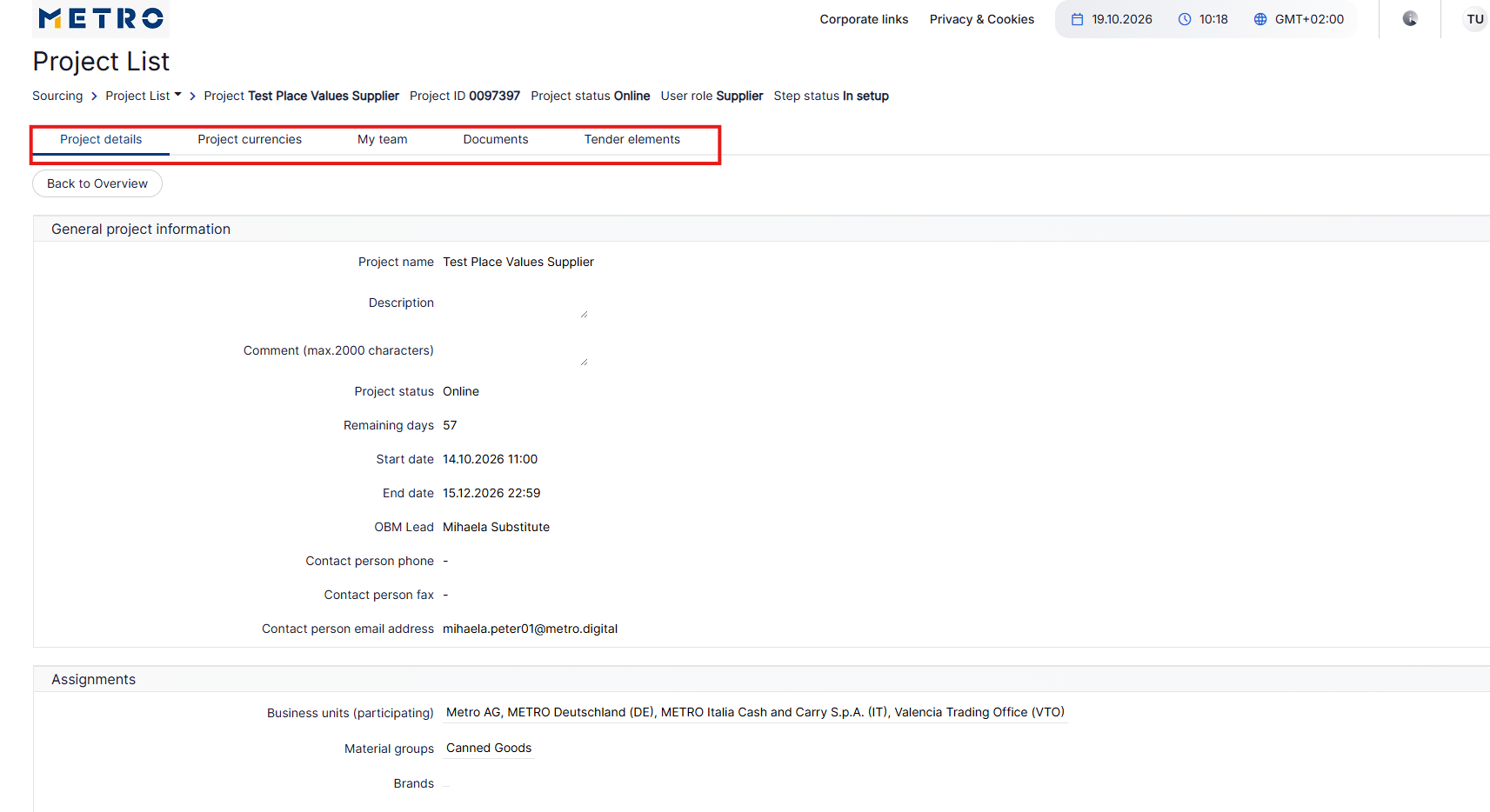
After accepting the General Conditions, you will have access to the following tabs:
- Project Details – General information about the project, such as the project name, start date, and end date.
- My Team – Members of your company who may be invited to the project.
- Documents – Tender-related documents, such as article specifications.
- Tender Elements – The section where you can access the price request and enter your offer.
6. Project Documents
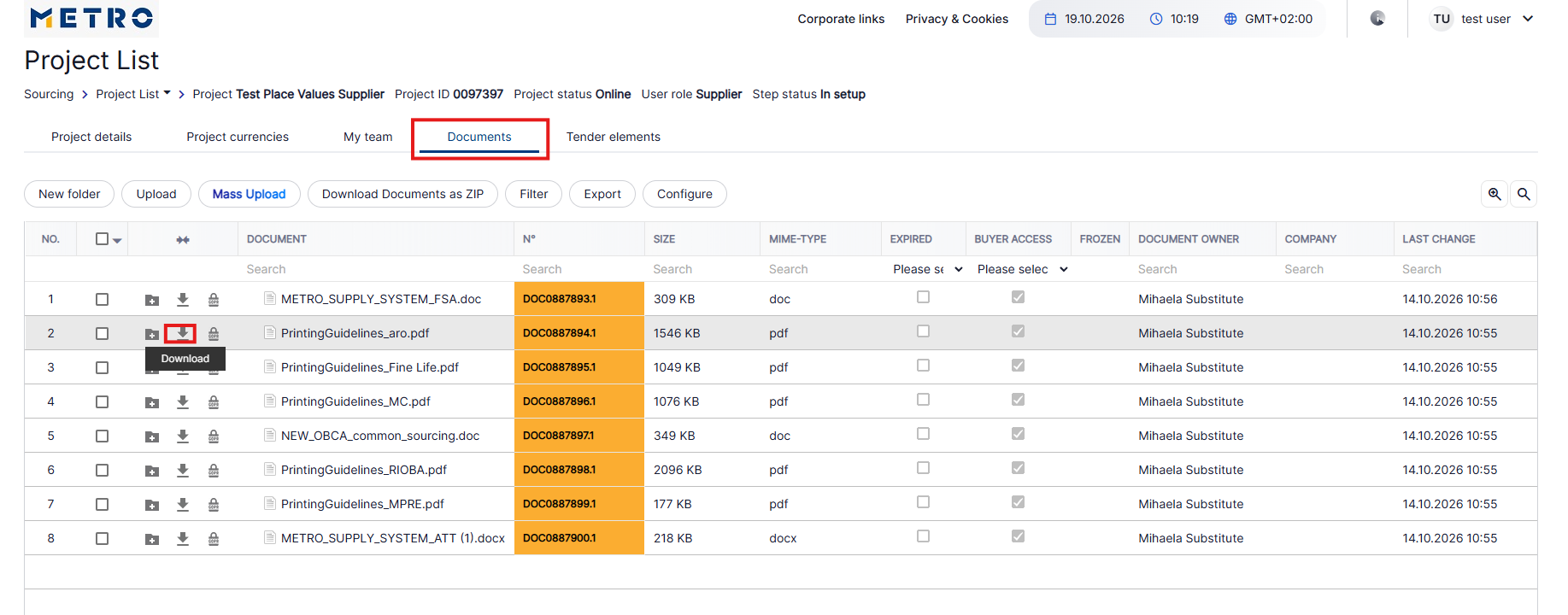
To download a document:
- Select the document.
- Click Download or select the Download icon.
You can also use the upload function in the Documents tab to share files with the buyer, if needed.
7. Enter Your Offer
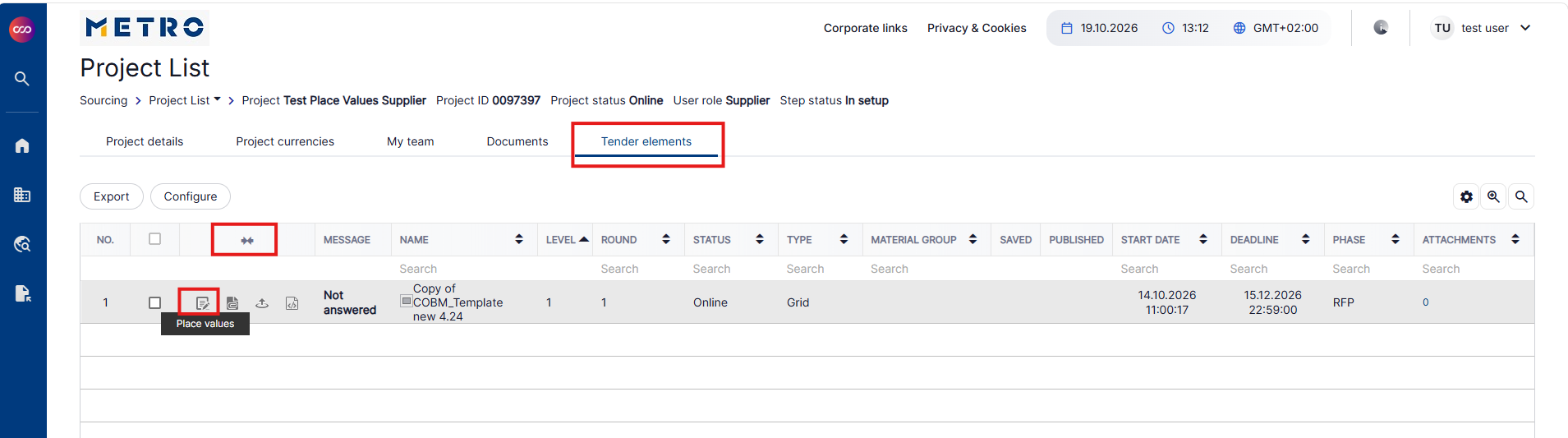
- Click the Tender Elements tab.
- Click the double arrow or the three dots (...) on the grid to display the available action icons.
- Click the Place Values icon.
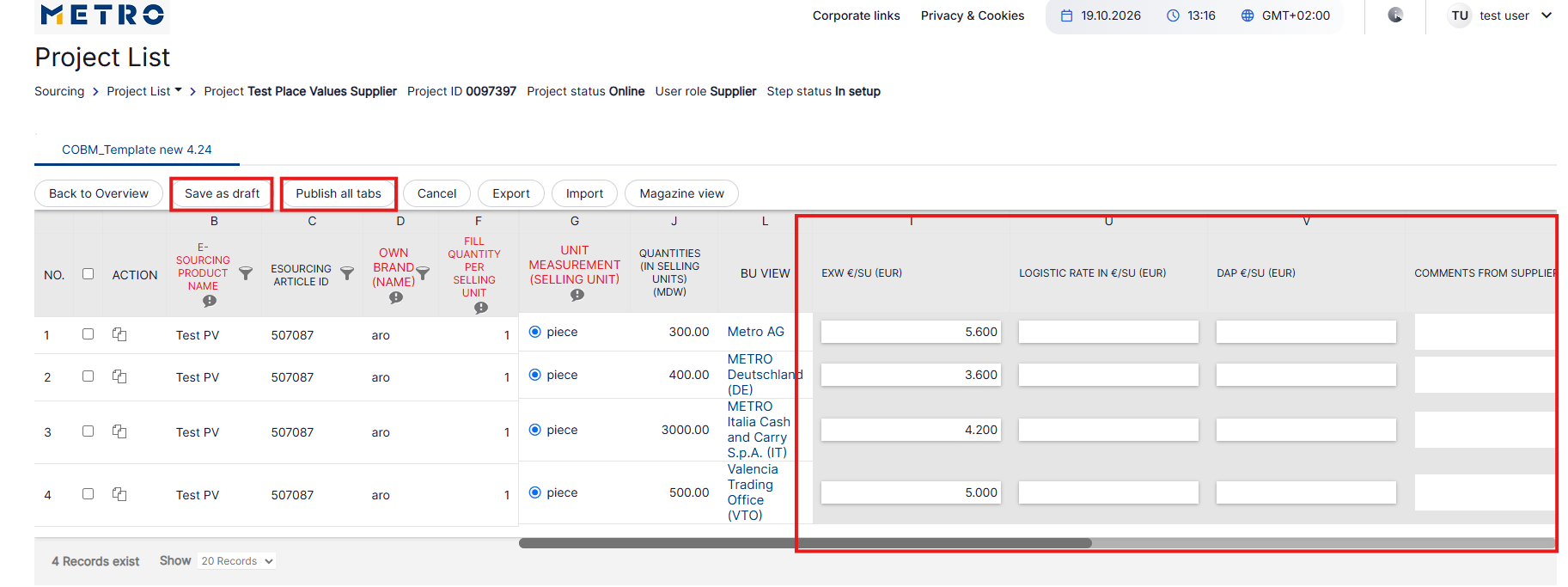
- Enter your prices in the required fields.
- Click Save as Draft.
- Click Publish All Tabs to submit your values and make them visible to the Project Leader.
Important: Saving your values as a draft does not publish them. Make sure you click Publish All Tabs when your offer is ready.
Changing Your Offer
You can change your answers and price values as long as the project is still online. After making any changes, save and publish your values again as required.
If you would need further assistance, please click HERE for our contact details